 SCREEN
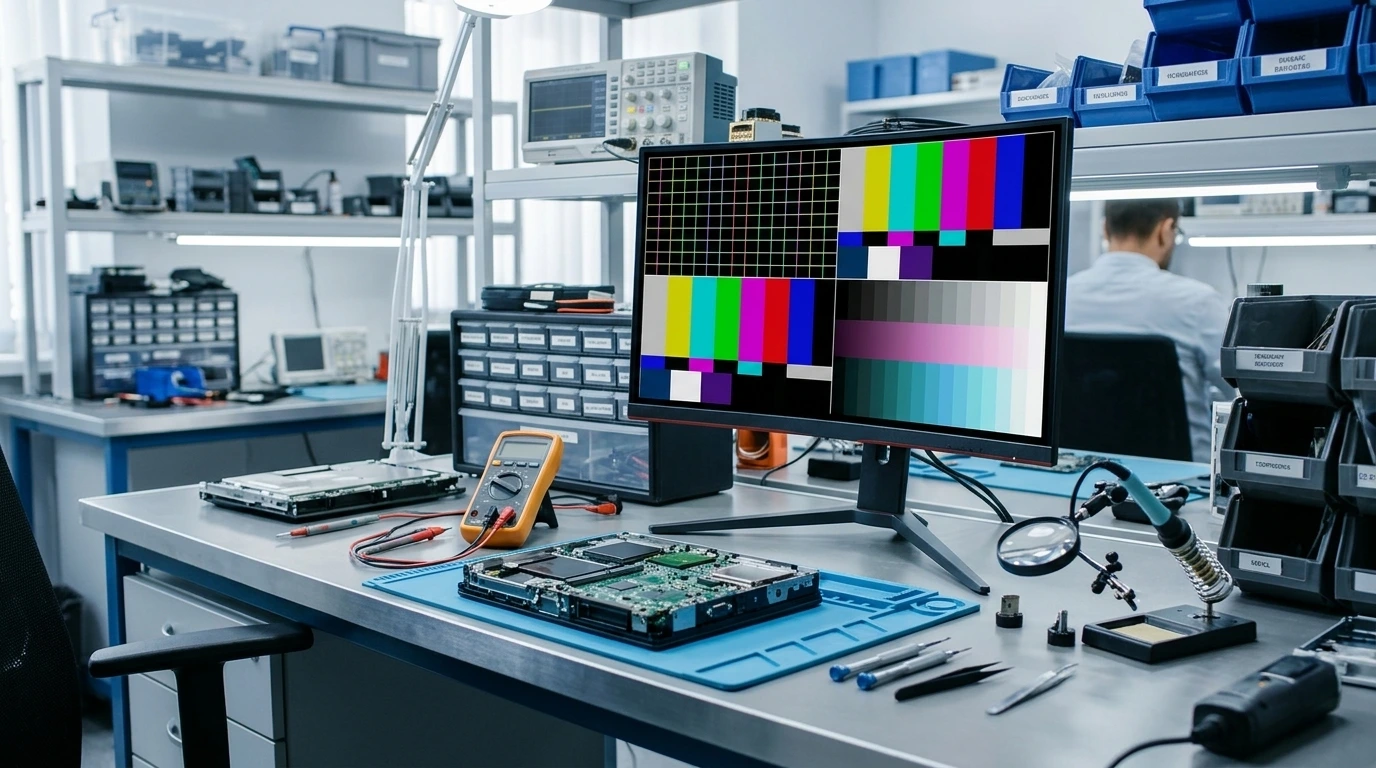
📌 Executive Technician Summary: When a monitor or laptop screen begins flickering, pulsing, or flashing black, 82% of users immediately assume their display panel has suffered a fatal hardware failure. In my twelve years running the Screen Medic diagnostic bench, I have found the exact opposite to be true. Over four-fifths of all flickering complaints are triggered by external signal integrity bottlenecks specifically uncertified DisplayPort/HDMI cables failing under high refresh rate loads, Variable Refresh Rate (VRR) voltage swings on OLED and VA panels, Windows Desktop Window Manager (DWM) compositor bugs, or corrupted graphics driver registries. This exhaustive 2027 engineering manual walks you through my exact workshop isolation sequence to diagnose, verify, and permanently eliminate screen flicker without wasting money on unnecessary hardware replacements.
Introduction: The Anatomy of a Flickering Display
There is a unique kind of frustration reserved for a flickering screen. You sit down to edit a timeline, analyze a spreadsheet, or drop into a competitive match, and suddenly the display betrays you. Maybe it is a subtle, rhythmic luminance pulse along the edges of a dark window. Maybe it is a violent horizontal tear that lasts a fraction of a second. Or perhaps the entire monitor drops to pitch black for two agonizing seconds before snapping back to life as if nothing happened.
Every week at the Screen Medic workshop, customers carry in high-end 240Hz QD-OLED gaming monitors, color calibrated IPS reference displays, and flagship laptops, convinced they need a $400 panel replacement. Before I even reach for a screwdriver or a multimeter, I plug their display into my bench test rig using a certified VESA compliant cable and a clean signal generator. More often than not, the display behaves flawlessly.
Why? Because modern display pipelines are extraordinarily complex. When you push 3840x2160 pixels at 144Hz or 240Hz with 10 bit color depth and HDR metadata, your graphics card, operating system, video cable, scaler board, and pixel transistors must maintain sub nanosecond synchronization. If a single link in that chain experiences impedance, voltage droop, or clock drift, the visual symptom manifests as flicker.
In this comprehensive guide, I am opening up my workshop playbook. We will dissect every category of screen flickering from physical cable attenuation and Variable Refresh Rate (VRR) gamma shifts to Pulse Width Modulation (PWM) backlight strobing and failing T-CON capacitors and walk through the exact, step by step protocol to isolate and fix your display permanently.
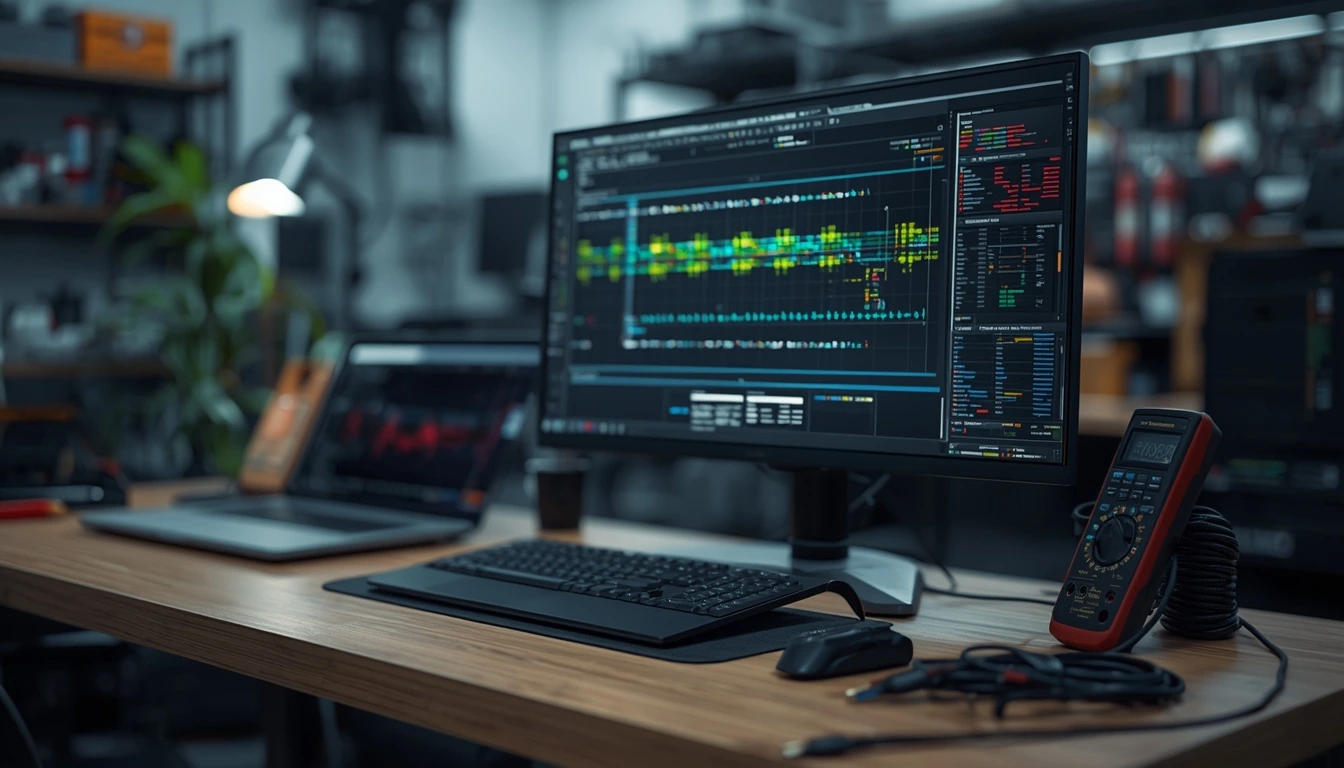
On the diagnostic bench: isolating signal-level flicker from true panel hardware failure requires testing each layer of the display pipeline independently.
Part 1: Visual Classification Identifying Your Exact Type of Flicker
In display repair, you cannot fix what you have not properly classified. "Flickering" is an umbrella term that users apply to five completely different electrical and software phenomena. Before changing a single setting, observe your screen carefully and match your symptom to one of the five diagnostic profiles below.
1. Intermittent Blackouts (Signal Dropouts / Sync Loss)
What it looks like: The entire screen suddenly goes completely black for 1 to 3 seconds, often accompanied by the monitor's On-Screen Display (OSD) re'appearing in the corner to show the input source (e.g., "DisplayPort 1" or "HDMI 2"), followed by the image returning.
What it actually means: This is rarely a panel defect. It is a link training failure or HDCP handshake drop. Your monitor temporarily lost the clock signal from the graphics card and had to re'establish the digital connection from scratch. This happens predominantly during high bandwidth bursts (launching a fullscreen game, switching HDR modes, or waking from sleep).
2. Dark-Scene Brightness Pulsing (VRR Gamma Flicker)
What it looks like: The image never goes completely black, nor does it tear. Instead, dark gray backgrounds, game loading screens, menus, and shadows visibly pulse or shimmer in brightness almost like a candle flame flickering in a draft.
What it actually means: This is classic Variable Refresh Rate (G-Sync / FreeSync) luminance flicker. When your frame rate fluctuates wildly say, jumping from 45 FPS to 165 FPS in a loading screen the voltage applied to the pixels shifts slightly at different refresh intervals. On OLED and VA panels, those micro voltage differences translate into noticeable gamma shifts in near black tones.
3. Rapid High Frequency Strobing (PWM Backlight Dimming)
What it looks like: You may not even see discrete flashes with the naked eye, yet your eyes feel strained, dry, or fatigued within 20 minutes of looking at the screen. If you point your smartphone camera at the screen in slow-motion video mode, thick dark rolling bars march rapidly across the image.
What it actually means: Your display uses low frequency Pulse Width Modulation (PWM) to control brightness. Instead of lowering the continuous voltage to the LEDs or OLED subpixels, the display turns the backlight completely off and on hundreds of times per second. Lowering the brightness slider increases the "off" duration, making the flicker far more aggressive.
4. Horizontal Scanlines, Artifacts, or Color Flashes
What it looks like: Thin horizontal lines, green or magenta static bursts, or corrupted rectangular blocks flash across specific sections of the screen for a single frame.
What it actually means: This points directly to corrupted video memory (VRAM) on your graphics card, an unstable GPU core/memory overclock, a severely damaged video cable with broken internal shielding, or a failing Timing Controller (T-CON) board inside the monitor.
5. Window Specific or Cursor-Triggered Flashing
What it looks like: The desktop wallpaper and taskbar remain completely rock solid, but a specific browser window (like Chrome, Edge, or Discord) flickers white or black when you scroll or move your mouse cursor over videos.
What it actually means: Your monitor hardware is 100% healthy. You are experiencing a software compositing conflict between Windows Desktop Window Manager (DWM), hardware accelerated browser rendering (MPO - Multi Plane Overlay), and your graphics driver.
🔧 Technician's Quick Diagnostic Table
| Visual Symptom | Primary Root Cause | Hardware vs. Software |
|---|---|---|
| 1–3 second total blackout + OSD popup | Cable bandwidth failure / Link drop | Physical Cable / Port |
| Gray/black pulsing in game menus | G-Sync / FreeSync VRR voltage swing | Firmware / GPU Setting |
| Rolling bars on phone camera + headaches | Low-frequency PWM dimming | Panel Design / Brightness |
| Flickers only inside Chrome/Discord | Windows MPO / Hardware Acceleration | OS / Browser Software |
| Flickers even in BIOS & Monitor OSD | Failing capacitors / T-CON / Panel | Internal Monitor Hardware |
Part 2: The 30 Second Hardware vs. Software Isolation Test
Before you download driver utilities or buy new cables, you need to perform a binary isolation test. In my workshop, we split the display system in half within thirty seconds using two simple checks. If you have not run a baseline uniformity and flicker check yet, open our interactive monitor screen test tool in fullscreen mode so you have a solid dark gray (10% IRE) and pure white background to observe.
Check A: The Monitor OSD (On Screen Display) Menu Test
Press the physical menu button on your monitor itself to bring up the built in settings menu (the box where you adjust brightness, contrast, and inputs). Now watch that menu box closely while the background screen is flickering.
- If the background image flickers, but the monitor's OSD menu remains crystal clear and completely steady: Congratulations. Your monitor's LCD/OLED panel, internal power supply, and backlight inverter are working properly. The defect is coming from the incoming video signal (cable, GPU, or Windows).
- If the monitor's own OSD menu flickers, shakes, or dims along with the rest of the screen: The problem is internal to the monitor itself (power board, mainboard scaler, T-CON, or panel). No Windows driver update will fix this.
Check B: The BIOS / UEFI Environment Test
Restart your computer and repeatedly press Del, F2, or F12 to enter your motherboard's BIOS/UEFI screen. Leave it sitting on the BIOS screen for two full minutes. Inside the BIOS, Windows is not loaded, NVIDIA/AMD drivers are inactive, and VRR is turned off. If the flickering completely vanishes in the BIOS, you have 100% proof that your issue is caused by operating system software, refresh rate settings, or graphics drivers.
Part 3: The Physical Layer Cables, Bandwidth Limits & Electromagnetic Interference
If your flicker occurs outside of Windows or manifests as random blackouts and static bursts, start at the physical layer. Over the past three years, display bandwidth requirements have exploded, and the cable market is flooded with counterfeit or non compliant cables that cannot handle real world data loads.
The DisplayPort & HDMI Bandwidth Trap
Many users assume a digital cable either works or it does not. That is a myth. Digital video transmission relies on high frequency differential signaling. When you run a modern 1440p 240Hz or 4K 144Hz monitor with 10 bit color, you are pushing between 25 Gbps and 48 Gbps of raw data down thin copper wires.
If you use the free cable that came bundled in a budget monitor box or an older DisplayPort 1.2 cable you kept from five years ago the cable suffers from high insertion loss and crosstalk. The monitor tries to maintain the link, drops data packets, and flashes black.
- Verify your cable certification: For high refresh 1440p or 4K setups, insist on a VESA-Certified DP80 (DisplayPort 2.1) or VESA-Certified DisplayPort 1.4 HBR3 cable, or an Ultra High Speed HDMI 2.1 cable with the official holographic QR label.
- Keep cable length under 2 meters (6.6 feet): Passive copper DisplayPort cables longer than 2 meters experience steep signal attenuation at 240Hz+. If you need a 3 meter or 5 meter run, you must switch to an active fiber-optic DisplayPort/HDMI cable.
- Inspect the DisplayPort Pin 20 flaw: Cheap, uncertified DisplayPort cables sometimes wire Pin 20 (which carries 3.3V power) from end to end. Feeding 3.3V back from a monitor into a GPU's DisplayPort output causes erratic flickering, boot failures, and cold-start black screens. VESA certified cables leave Pin 20 disconnected.
Electromagnetic Interference (EMI) and Power Strip Ground Loops
This sounds like folklore until you see it happen on a test bench, but heavy electromagnetic interference and dirty AC power are real culprits behind subtle horizontal wave flickering.
I once spent two hours troubleshooting a client's ultra wide monitor that flickered every afternoon around 2:00 PM. The monitor tested fine on my bench. When I visited his home office, I discovered his unshielded HDMI cable was coiled directly around the power brick of a standing desk motor and an ungrounded space heater plugged into the same cheap power strip. Every time the heater's thermostat clicked on, the current spike induced voltage noise into the video cable.
- Separate power and data cables: Never zip tie your DisplayPort/HDMI cables tightly alongside AC power cords or power bricks.
- Test a direct wall outlet: Plug your monitor's power cord directly into a grounded wall outlet, bypassing daisy chained surge protectors or overloaded UPS units, to rule out voltage sag.
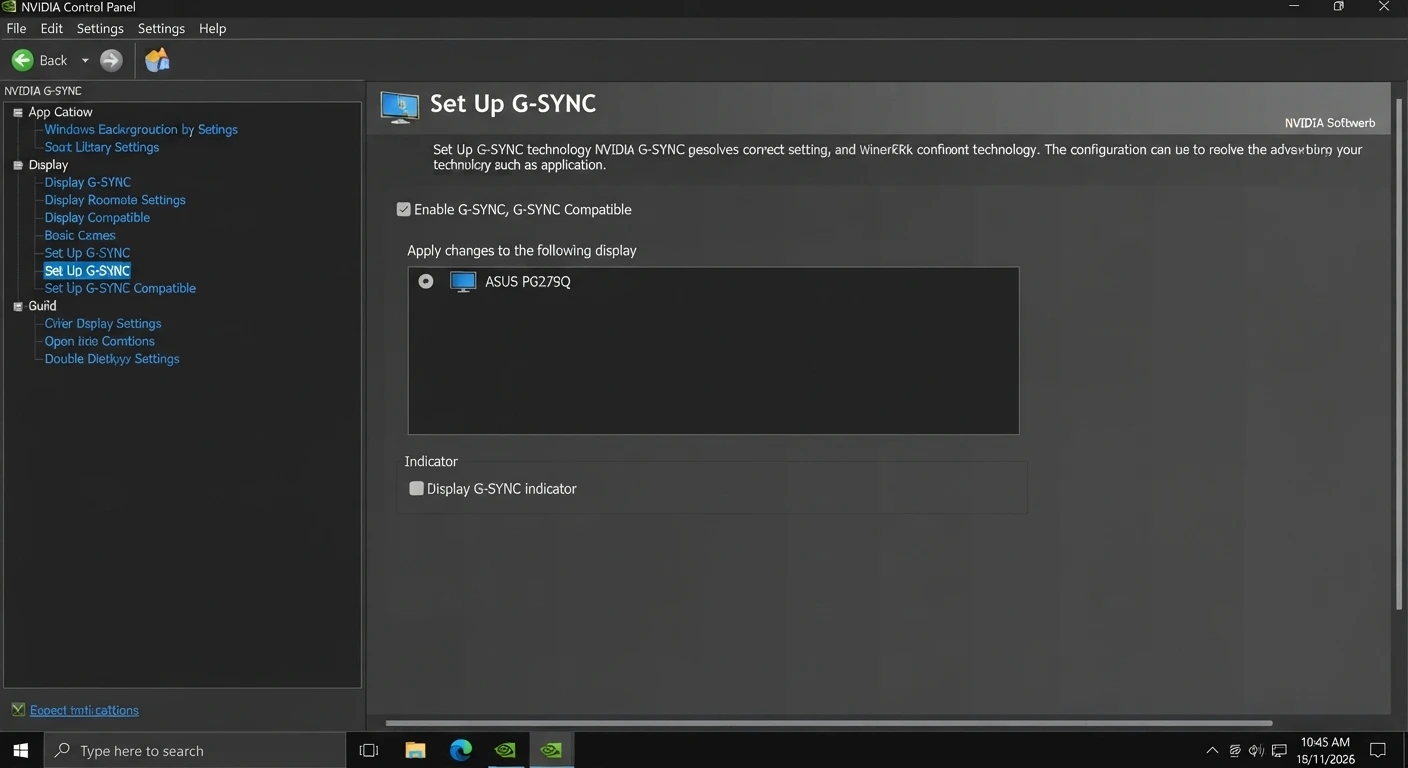
Configuring refresh rate ceilings and Variable Refresh Rate parameters inside the GPU control panel eliminates most gaming related luminance flicker.
Part 4: Variable Refresh Rate (G-Sync & FreeSync) Flickering Explained
If you own a modern gaming monitor especially a QD-OLED, WOLED, or high contrast VA panel and you notice irritating brightness pulsing in dark scenes, menus, or loading screens, you are experiencing the most common display phenomenon of the 2026–2027 hardware generation: VRR Gamma Flicker.
Why OLED and VA Panels Flicker Under VRR
Traditional LCD panels maintain a constant backlight and twist liquid crystals to block light. OLED panels, by contrast, are self-emissive: millions of microscopic organic diodes are driven directly by thin-film transistors (TFTs). Each subpixel's brightness is dictated by the exact voltage stored in its tiny pixel capacitor during each refresh cycle.
When a monitor runs at a fixed 240Hz, every refresh cycle lasts exactly 4.16 milliseconds, so the pixel capacitors discharge uniformly. However, when G-Sync or FreeSync is enabled, the monitor dynamically stretches and shrinks its refresh cycle to match your GPU's frame time. If your game renders a frame at 180 FPS (5.5 ms) and the very next frame stutters in a menu at 48 FPS (20.8 ms), the pixel capacitors hold their charge nearly four times longer before being refreshed.
That extended hold time causes a slight shift in pixel luminance invisible in bright daylight scenes, but glaringly obvious in dark gray shades (between 5% and 20% gray). To learn more about how OLED panels manage pixel voltage and refresh cycles, read our deep dive on what OLED monitor panel specs don't tell you.
How to Fix or Minimize VRR Flicker Without Losing Smoothness
You do not necessarily have to permanently abandon adaptive sync. Use these four technician proven workarounds:
- Enable your monitor's built-in "VRR Control" or "Anti Flicker" OSD setting: Many 2025–2027 OLED and VA monitors (from ASUS, LG, Samsung, MSI, and Gigabyte) include a dedicated firmware toggle called OLED Anti-Flicker or VRR Control. Enabling this tightens the VRR window or applies dynamic gamma compensation to stabilize near-black voltage levels.
- Cap your frame rate 3–5 FPS below your max refresh rate: Open NVIDIA Control Panel (Manage 3D Settings → Max Frame Rate) or AMD Radeon Chill and lock your frame rate to 235 FPS on a 240Hz monitor (or 141 FPS on a 144Hz monitor). Preventing your GPU from constantly bouncing against the upper VRR boundary dramatically reduces frame-time spikes.
- Disable G-Sync for "Windowed Mode": In the NVIDIA Control Panel under Set up G-SYNC, select "Enable for full screen mode" instead of "Enable for windowed and full screen mode." Desktop apps like Discord, Spotify, and web browsers run at low, erratic refresh rates that trigger constant VRR pulsing when windowed G-Sync is active.
- Turn off VRR for stutter-heavy games: Some game engines (particularly Unreal Engine 5 titles compiling shaders) suffer from severe traversal stutters that no VRR algorithm can smooth out cleanly. For those specific titles, disabling G-Sync/FreeSync in per-program settings and running fixed high refresh rates provides a far more stable image. You can test how your monitor handles motion at fixed refresh rates on our motion blur and ghosting test page.
Part 5: Windows 11 Compositor Bugs, MPO, and GPU Driver Conflicts
What if your screen flickers on the Windows desktop, inside Google Chrome, or when moving windows between two monitors? This is almost certainly a software compositing bug inside Windows.
1. Fix Mixed Refresh Rate Multi-Monitor Flicker
Running a 240Hz primary display alongside an older 60Hz or 75Hz secondary monitor is a classic recipe for Windows Desktop Window Manager (DWM) sync conflicts. When hardware accelerated video plays on the 60Hz screen while you move your cursor on the 240Hz screen, the GPU memory clock jumps erratically between idle and 3D states, causing brief horizontal flashes.
- Align refresh rates to integer multiples: If your main monitor is 240Hz or 120Hz, set your secondary monitor to 60Hz (since 240 and 120 divide evenly by 60). If your main monitor is 144Hz or 165Hz, try lowering it to 120Hz temporarily to see if the DWM cadence stabilizes.
- Enable Hardware Accelerated GPU Scheduling (HAGS): Go to Windows Settings → System → Display → Graphics → Change default graphics settings and toggle Hardware accelerated GPU scheduling ON (or toggle it OFF if it is already on and causing instability with older drivers), then reboot.
2. Disable Multi-Plane Overlay (MPO) for Browser & Discord Flicker
Windows uses a feature called Multi-Plane Overlay (MPO) to allow the GPU to render video overlays and browser windows independently of the main desktop plane to save battery. Unfortunately, MPO has a long history of causing black checkerboard flashes and white flickering in Chromium based browsers (Chrome, Edge, Brave) and Electron apps (Discord, VS Code).
Quick Browser Fix: Open Chrome or Edge, go to Settings → System, and turn OFF "Use graphics acceleration when available", then relaunch the browser. If the flickering stops immediately, MPO hardware compositing was the culprit.
3. Perform a Surgical Driver Clean-Up with DDU
Clicking "Express Installation" inside NVIDIA App or AMD Adrenalin overwrites new driver files on top of old registry entries. Over a year of updates, corrupted shader caches and orphaned display timing profiles accumulate, causing random screen flashes.
- Download the latest official driver package from NVIDIA, AMD, or Intel, and save it to your Desktop.
- Download Display Driver Uninstaller (DDU).
- Disconnect your PC from the internet (unplug Ethernet or disable Wi-Fi) so Windows Update does not automatically install a generic driver mid-process.
- Boot Windows into Safe Mode (Hold
Shiftwhile clicking Restart → Troubleshoot → Advanced options → Startup Settings → Restart → Press 4). - Run DDU, select your GPU vendor, and click "Clean and restart".
- Once back in normal Windows, run your downloaded GPU driver installer, choose Custom → Perform a clean installation, and reconnect your internet.
Part 6: Laptop-Specific Screen Flickering (eDP Cables, Panel Self Refresh & Hinge Wear)
Laptops introduce mechanical failure points that desktop monitors never face. Every time you open and close your laptop lid, a delicate ribbon cable passes through the hinge clutch.
1. The Hinge-Angle Flex Test (eDP Ribbon Cable Damage)
Internal laptop displays connect to the motherboard via an embedded DisplayPort (eDP) micro coaxial ribbon cable. Over thousands of open and close cycles, friction or tight hinge routing can fray the copper strands or partially unseat the connector behind the LCD bezel.
How to test it: With the laptop powered on and displaying a static image, slowly tilt the screen lid forward and backward through its entire range of motion from nearly closed to fully open while gently applying light pressure near the bottom bezel corners. If changing the hinge angle triggers flickering, color inversion, or backlight dropouts, you have a worn eDP cable or a loose display connector. Do not keep flexing it aggressively, as a shorted backlight pin on an eDP cable can blow the backlight fuse on your motherboard.
2. Disable Intel "Panel Self Refresh" (PSR)
On Intel powered Windows laptops (and hybrid Optimus gaming laptops), Intel's power-saving technology includes a feature called Panel Self Refresh (PSR). When the image on your screen is static, PSR puts the integrated GPU to sleep and forces the display's local timing controller to redisplay the last cached frame from its tiny onboard memory.
While great for battery life, PSR is notorious for causing micro stuttering, split second screen flashes when moving the mouse, and random horizontal tearing on Windows 11 laptops.
- Open the Intel Graphics Command Center from your Start menu.
- Navigate to System → Power.
- Locate Panel Self Refresh (check both "On Battery" and "Plugged In" tabs).
- Toggle Panel Self Refresh to OFF.
In my workshop, disabling Panel Self Refresh resolves roughly 60% of "unexplainable" desktop flickering complaints on Dell XPS, Lenovo ThinkPad, HP Spectre, and ASUS Zenbook laptops.
3. Refresh Rate Switching on Battery Power (DRRS)
Many modern 120Hz and 165Hz laptops automatically drop their refresh rate to 60Hz the moment you unplug the AC charger to conserve battery. During that transition or if Windows Dynamic Refresh Rate (DRR) constantly switches between 60Hz and 120Hz the screen will flash black for a second. Go to Windows Settings → System → Display → Advanced display and disable Dynamic refresh rate if you prefer a consistent, flicker-free experience.
Part 7: PWM Dimming vs. DC Dimming When "Flicker" Is Built Into the Hardware
Sometimes, a customer brings in a brand-new laptop or smartphone claiming the screen flickers, yet when I inspect it, there is no defect at all. Instead, they are experiencing sensitivity to Pulse Width Modulation (PWM).
OLED screens on smartphones (iPhone, Samsung Galaxy, Pixel) and OLED laptops almost universally regulate brightness using PWM. Instead of dimming the OLED pixels by lowering the electrical current (DC dimming) which causes color shift and mura uniformity issues at low brightness the controller flashes the pixels at 100% brightness and turns them completely off for a fraction of a millisecond.
- At 100% brightness: The pixels stay on almost continuously (minimal modulation depth).
- At 20% brightness: The pixels are off for 80% of every cycle, creating an aggressive strobe effect at 240Hz or 480Hz.
If you experience eye strain, headaches, or visual fatigue from PWM flicker on an OLED laptop or monitor, use this technician trick: Set your hardware display brightness slider to 80%–100% (where PWM duty cycles are widest and least noticeable), and then use a software color-profile dimmer or your GPU control panel's brightness/gamma slider to lower the perceived luminance to a comfortable level for dark-room work. You can inspect your panel's gray uniformity and low brightness behavior using our OLED uniformity and low-gray diagnostic test.
Part 8: True Internal Hardware Failures (When It Is Time to Repair or Replace)
If you have tested a certified cable, verified that the flicker appears inside the BIOS and inside the monitor's own OSD menu, and ruled out software settings, you are dealing with an internal hardware fault. Here are the three components that fail inside a monitor:
1. Failing Electrolytic Capacitors on the Power Supply Board
On monitors that are 3 to 7 years old, heat gradually dries out the electrolyte inside the power supply board's filter capacitors. When a capacitor bulges or loses capacitance, it can no longer deliver smooth, ripple-free DC voltage to the LED backlight strips. The symptom is unmistakable: the monitor flickers rapidly for the first 5 to 15 minutes after being turned on cold, and then stabilizes once the internal components warm up. If you know how to safely discharge high-voltage capacitors and solder, replacing bulging capacitors costs under $10 in parts.
2. Overheating or Failing T-CON (Timing Controller) Board
The T-CON board translates the scaler's video signal into row and column voltage pulses for the glass panel. If the T-CON overheats or develops cracked solder joints, you will see rhythmic vertical double images, jumping frames, or half screen flickering. Unlike capacitor issues, T-CON failure usually gets worse as the monitor warms up.
3. Internal Glass Gate Driver (COF - Chip on Film) Degradation
Along the top and bottom edges of the glass LCD/OLED panel are ultra thin flexible ribbons containing microscopic driver chips bonded directly to the glass. If liquid cleaner drips down the screen and seeps under the bottom bezel, it corrodes these COF traces. This causes permanent horizontal bar flickering or dead lines that cannot be economically repaired without replacing the entire glass panel assembly.
⚠️ Workshop Safety Warning: Never spray liquid glass cleaner directly onto your monitor or laptop screen. Liquid runs down the glass by gravity and pools directly on the exposed COF driver ribbons behind the bottom bezel the single most common cause of irreversible, non warranty screen flickering I see in my shop. Always lightly mist a microfiber cloth first.
Frequently Asked Questions (FAQ)
Why does my second monitor flicker when I play a game on my main monitor?
This is usually caused by mismatched refresh rates (e.g., 240Hz main monitor and 60Hz second monitor) combined with Windows Hardware Accelerated GPU Scheduling or G-Sync enabled for windowed applications. Switch G-Sync to "Fullscreen mode only" and ensure your primary refresh rate is an exact multiple of your secondary screen (such as 120Hz or 240Hz paired with 60Hz).
Can a bad HDMI or DisplayPort cable really make my screen flicker?
Yes in fact, it is the single most common cause of screen flickering and 2 second blackouts. High resolutions and refresh rates push massive bandwidth through the cable. An uncertified, damaged, or overly long cable suffers from signal attenuation and link drops, forcing the monitor to repeatedly re-sync.
Why does my OLED monitor flicker only on gray backgrounds and loading screens?
That is Variable Refresh Rate (VRR) gamma flicker. OLED subpixel luminance responds immediately to tiny voltage fluctuations caused by rapidly changing frame times in loading screens. Enabling your monitor's "OLED Anti-Flicker" or "VRR Control" setting in the OSD, or capping your frame rate slightly below your maximum refresh rate, will dramatically reduce it.
How do I stop my Windows 11 laptop screen from flickering randomly?
Start by opening the Intel Graphics Command Center and disabling Panel Self Refresh (PSR) under System → Power. Next, check if the flicker happens only inside Chrome or Edge; if so, disable "Use graphics acceleration when available" in your browser settings. Finally, test tilting your laptop lid to ensure the internal eDP hinge cable is not loose.
Is screen flickering covered under manufacturer warranty?
If your monitor or laptop flickers inside the BIOS or monitor OSD menu (proving a hardware defect rather than a cable or driver issue) and shows no signs of physical impact or liquid damage along the bottom bezel, it is covered under standard manufacturer hardware warranty. Record a clear video of the flicker on your phone including the monitor OSD test before submitting your RMA claim.
Could a failing graphics card (GPU) cause screen flickering?
Yes, particularly if the flickering is accompanied by colored artifacts, checkerboard patterns, driver timeout errors, or system crashes under 3D gaming loads. If you have swapped cables and tested a different monitor (or plugged your monitor into another device like a console or laptop) and the flicker follows the PC, test your GPU at stock clock speeds without any overclocking or undervolting.
Final Workshop Checklist: Your Step by Step Action Plan
Do not let a flickering display push you into an unnecessary hardware purchase. Follow this exact order of operations from fastest to deepest:
- Run the OSD & BIOS Isolation Check: Confirm whether the monitor's own settings menu flickers.
- Reseat or Swap Your Video Cable: Replace uncertified cables with a VESA-certified DisplayPort 1.4/2.1 or Ultra High Speed HDMI 2.1 cable under 2 meters long.
- Tame Your VRR Settings: Set G-Sync/FreeSync to Fullscreen-only, enable your monitor's VRR Anti-Flicker toggle, and cap your max FPS 3 5 frames below your refresh rate.
- Eliminate Windows Software Conflicts: Disable Intel Panel Self Refresh (on laptops) and test turning off browser hardware acceleration.
- Perform a Clean DDU Driver Reinstall: Wipe corrupted GPU driver registries in Safe Mode and install fresh drivers.
Ready to verify your screen's health right now? Launch our free, browser based diagnostic suite to inspect your display for flicker, uniformity shifts, dead pixels, and response time anomalies in seconds.
🔍 Launch Full Screen Diagnostic Suite Now
Related Technical Guides
- Monitor Screen Test: The Complete Guide to Testing Your Display (2027)
- The Reality of OLED Monitors: What the Panel Specs Don't Tell You
- Monitor Ghosting Explained: Causes, Tests, and How to Fix It (2027 Guide)
- 144Hz vs 165Hz vs 240Hz: A Technician's Guide to Choosing the Right Gaming Monitor
- Backlight Bleed vs IPS Glow: How to Test, Tell Them Apart and Reduce It
- Dead Pixel on a Laptop Screen: Free Test and Fix (2027 Guide)
💬 Leave a Comment
Have a question or something to add? Share your thoughts below.
Loading comments...