 SCREEN
📌 Quick Summary: That Google search bar at the bottom of your home screen is not a permanent fixture anymore. On most modern Android devices, you can remove it in under 30 seconds. On iPhone, it is usually a widget you can delete. The method depends entirely on your device brand and the version of Android or iOS you are running. This guide gives you the exact steps for every major platform, including the new One UI 9 change that has confused thousands of Samsung users.
Why That Google Bar Is There (And Why It's Not Always Removable)
I have been repairing and configuring phones for over a decade. And I can tell you this: the Google search bar on your home screen is not a virus. It is not malware. It is a design choice made by your phone manufacturer and Google.
But here is the catch: for years, it was not removable on certain devices. Pixel phones, in particular, had the bar baked into the Pixel Launcher. You could not long press it. You could not drag it away. It was there, forever, whether you used Google Search or not .
That changed with Android 17. Google finally added a toggle to remove the search bar from the Pixel Launcher . And Samsung, with its One UI 9 update, made the bar removable too, but buried the setting in a place most people would never look .
This guide walks you through every scenario. Android, iPhone, Samsung, Pixel, and even the Chrome browser edge case that confuses people.
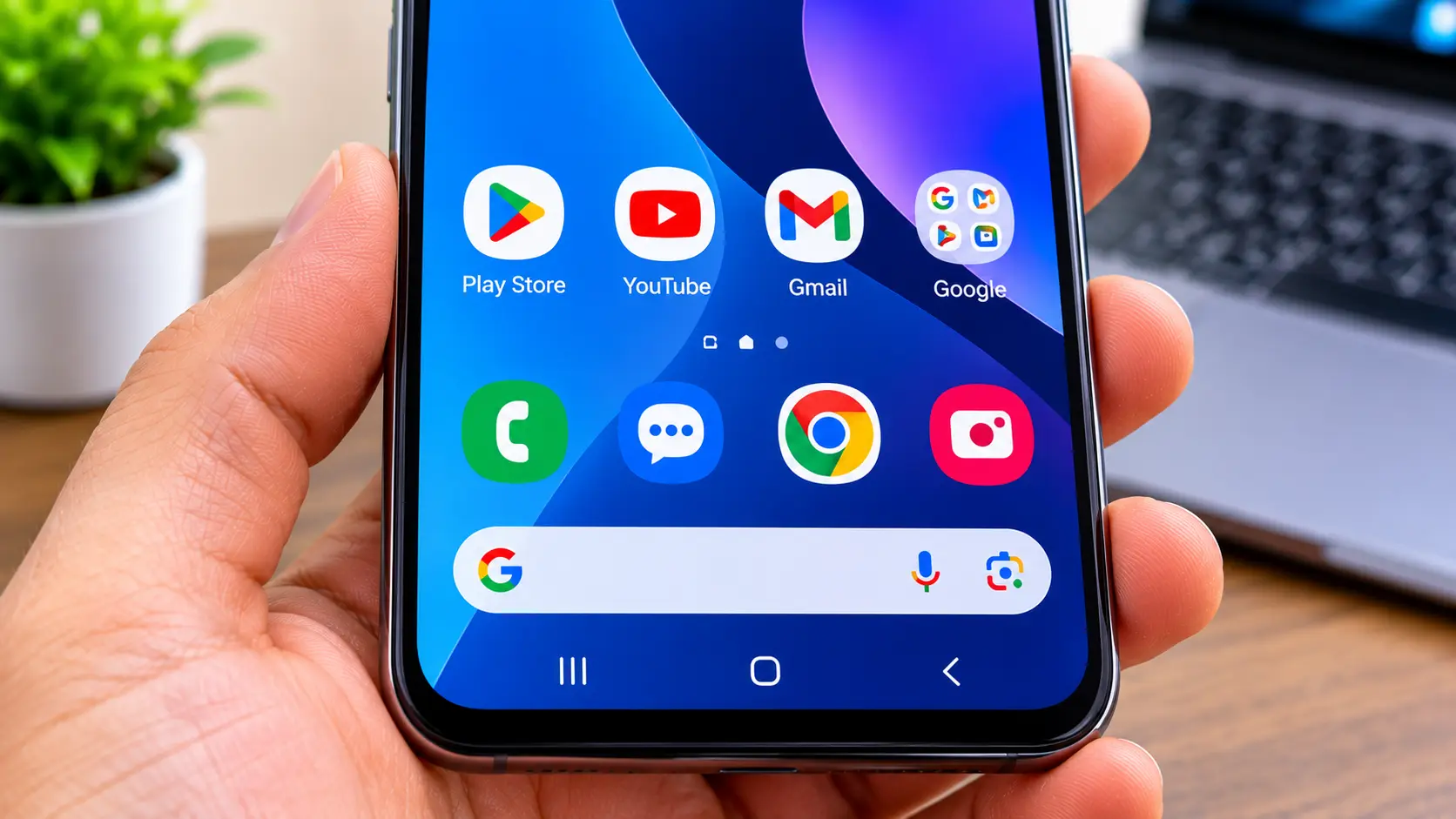
The Google search bar: useful for some, an eyesore for others.
First: Identify What You Are Actually Looking At
Before you start deleting things, you need to know what kind of bar you have. There are three possibilities.
1. A Widget
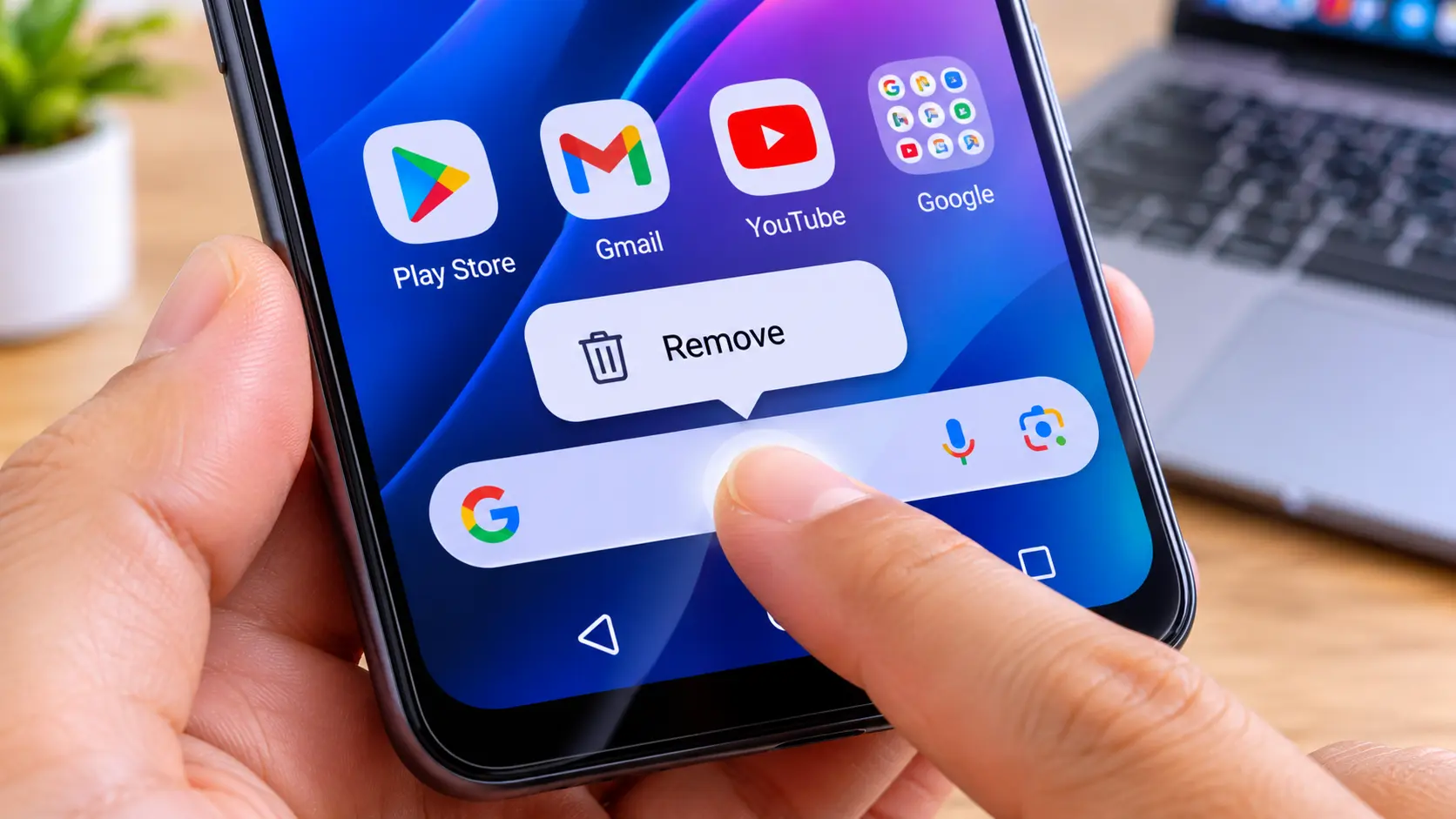
This is the most common. A widget is a small app window that sits on your home screen. You can usually long press it and see a "Remove" option. If you can drag it around, it is a widget .
2. A Fixed Launcher Element
This is the bar that was baked into the Pixel Launcher for years, and the new bar in Samsung's One UI 9. You cannot long press it and drag it. It does not behave like a widget. It is part of the home screen's foundation .
3. A Chrome New Tab Page
Sometimes people think they are looking at their home screen, but they are actually looking at Chrome's new tab page. The Google search bar inside Chrome is not a home screen widget. It is a browser feature .
Quick test: Long press the bar. If you see a "Remove" or "Edit" option, it is a widget. If nothing happens, it is a fixed launcher element. If you only see it when Chrome is open, it is a browser feature.
How to Remove the Google Search Bar on Android
The steps vary depending on your phone brand and Android version. Here is the exact method for each major scenario.
Samsung Galaxy (One UI 9 and Later)
This is the one that confused thousands of users. In One UI 9, Samsung changed the search bar from a removable widget to a fixed element at the bottom of the home screen. Long pressing it does nothing. But the option to remove it is still there, buried in the home screen settings .
- Go to your home screen.
- Long press on an empty area (not on an app icon or the search bar itself).
- Tap Settings (or "Home screen settings").
- Look for the option "Show search on Home screen" or similar.
- You will see options for Google, Samsung Finder, both, or neither. Turn off Search .
The bar will disappear immediately. If you want to use a different search engine, you can add DuckDuckGo's widget from the widget picker .
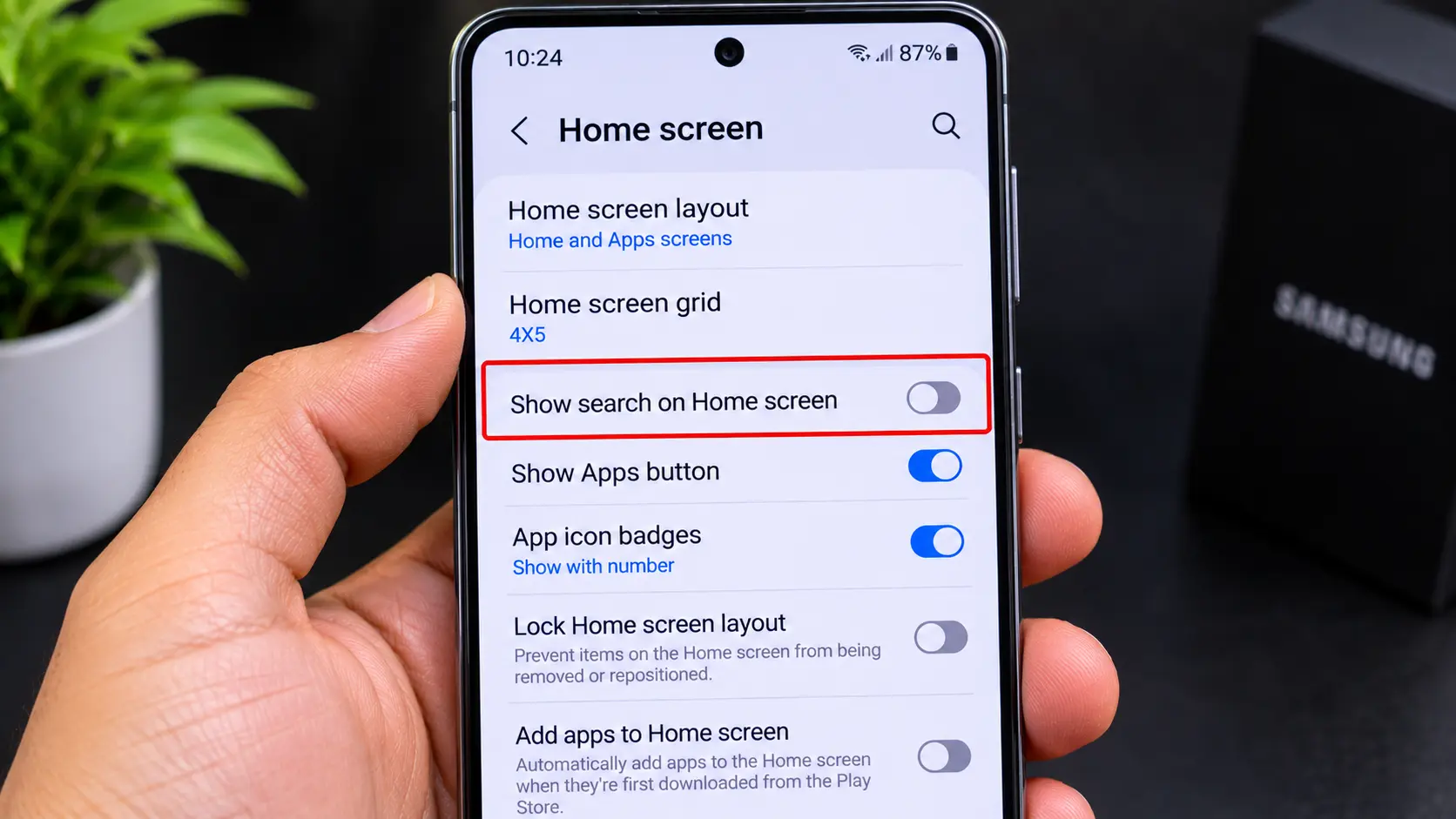
The Samsung setting that removes the search bar is hidden in the home screen settings.
Google Pixel (Android 17 and Later)
Pixel users waited years for this. With Android 17, Google finally added a toggle to remove the search bar from the Pixel Launcher .
- Long press on an empty area of your home screen.
- Tap Home settings or Settings.
- Look for "Search bar settings" or "Show search bar".
- Toggle it off .
If you are on an older Pixel running Android 16 or earlier, you cannot remove the bar from the stock launcher. Your only option is to install a third party launcher like Nova Launcher .
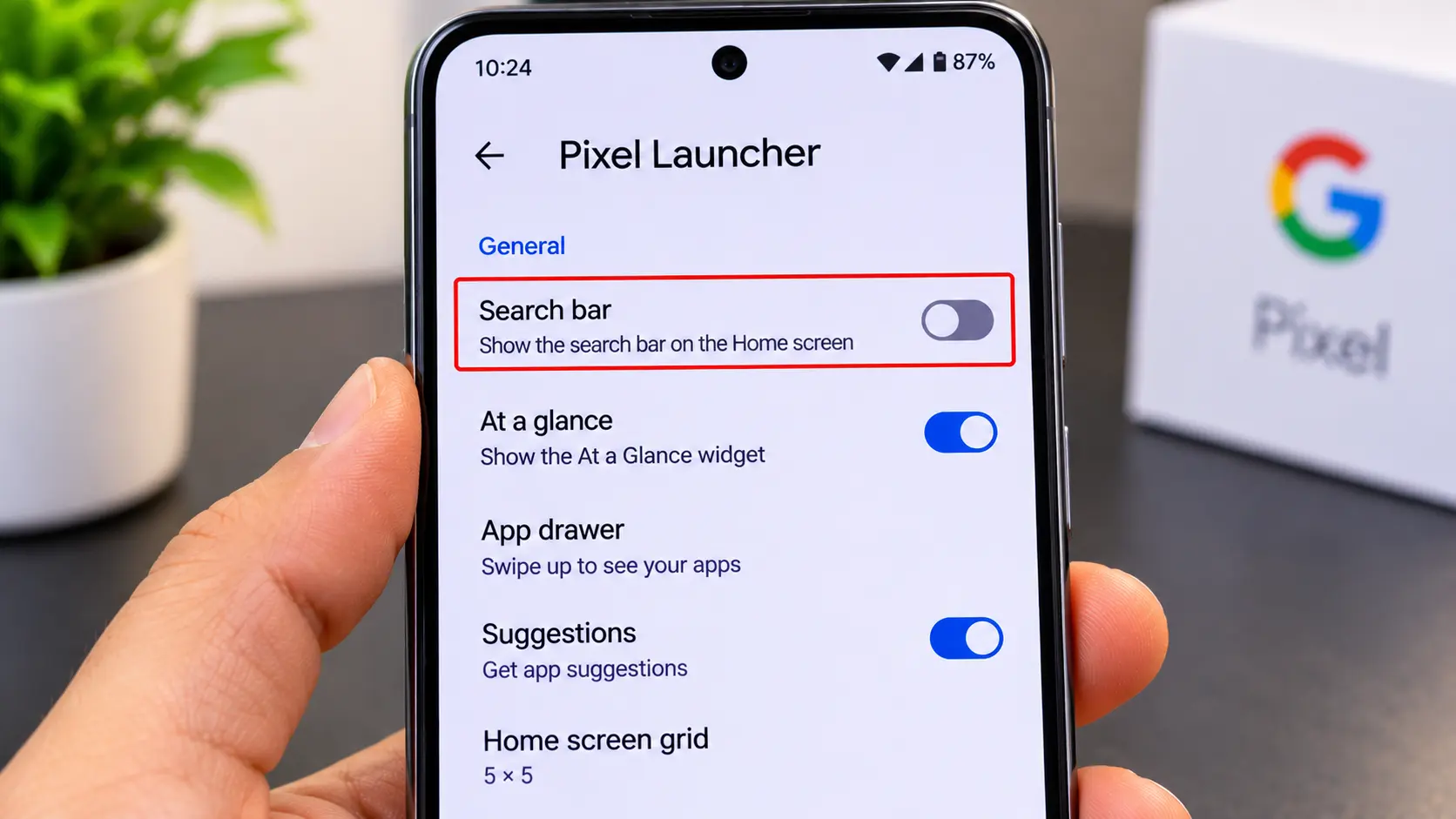
The Pixel Launcher toggle added in Android 17.
Other Android Brands (Motorola, Xiaomi, OnePlus, etc.)
On most other Android phones, the Google search bar is a widget. The removal process is straightforward .
- Long press the Google search bar.
- Wait for the menu to appear.
- Tap Remove or drag it to the "Remove" area at the top of the screen.
If the bar does not respond to a long press, it is a fixed launcher element. Check your home screen settings for a toggle. If there is none, you cannot remove it without a third party launcher.
How to Remove the Google Search Bar on iPhone
On iPhone, the Google search bar is almost always a widget from the Google app. It is not a system feature. Removing it is simple .
- Go to the home screen page where the Google bar is located.
- Long press the bar until the icons start to jiggle.
- Tap Remove Widget.
- Confirm by tapping Remove .
This removes the widget, not the Google app itself. You can still use Google search inside the app or in Safari.
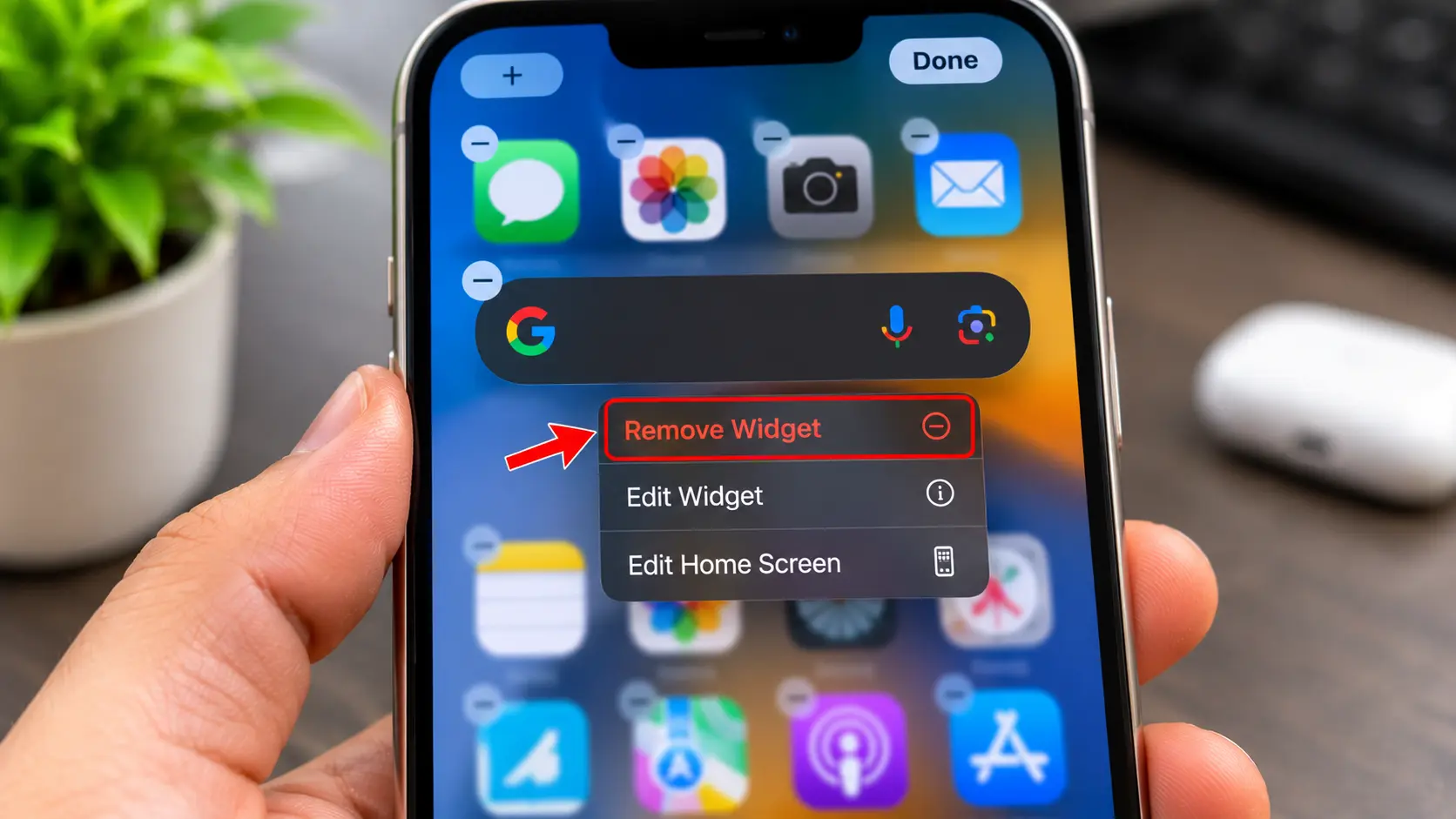
Removing the Google widget on iPhone.
If the bar is in the Today View: Swipe right from the home screen to open the Today View. Long press the Google widget there and select Remove Widget .
If the bar is inside Chrome: Open Chrome, tap the three dots, go to Settings, and look for New Tab settings. Choose an option that does not show the Google search module .
What About the Chrome Search Bar? (The Case That Confuses Everyone)
This is the most common misunderstanding I see. Someone opens Chrome on their phone, sees a Google search bar at the top or bottom, and thinks it is on their home screen. It is not. It is inside the browser .
Here is how to tell the difference:
- If the bar is inside Chrome only: It is the browser's address bar. You cannot remove it. You can only change the new tab page behavior.
- If the bar is on the home screen: It is a widget or a launcher element. Use the steps above.
To change Chrome's new tab page: Open Chrome, tap the three dots, go to Settings, then New Tab. Choose a layout that does not show the Google search module .
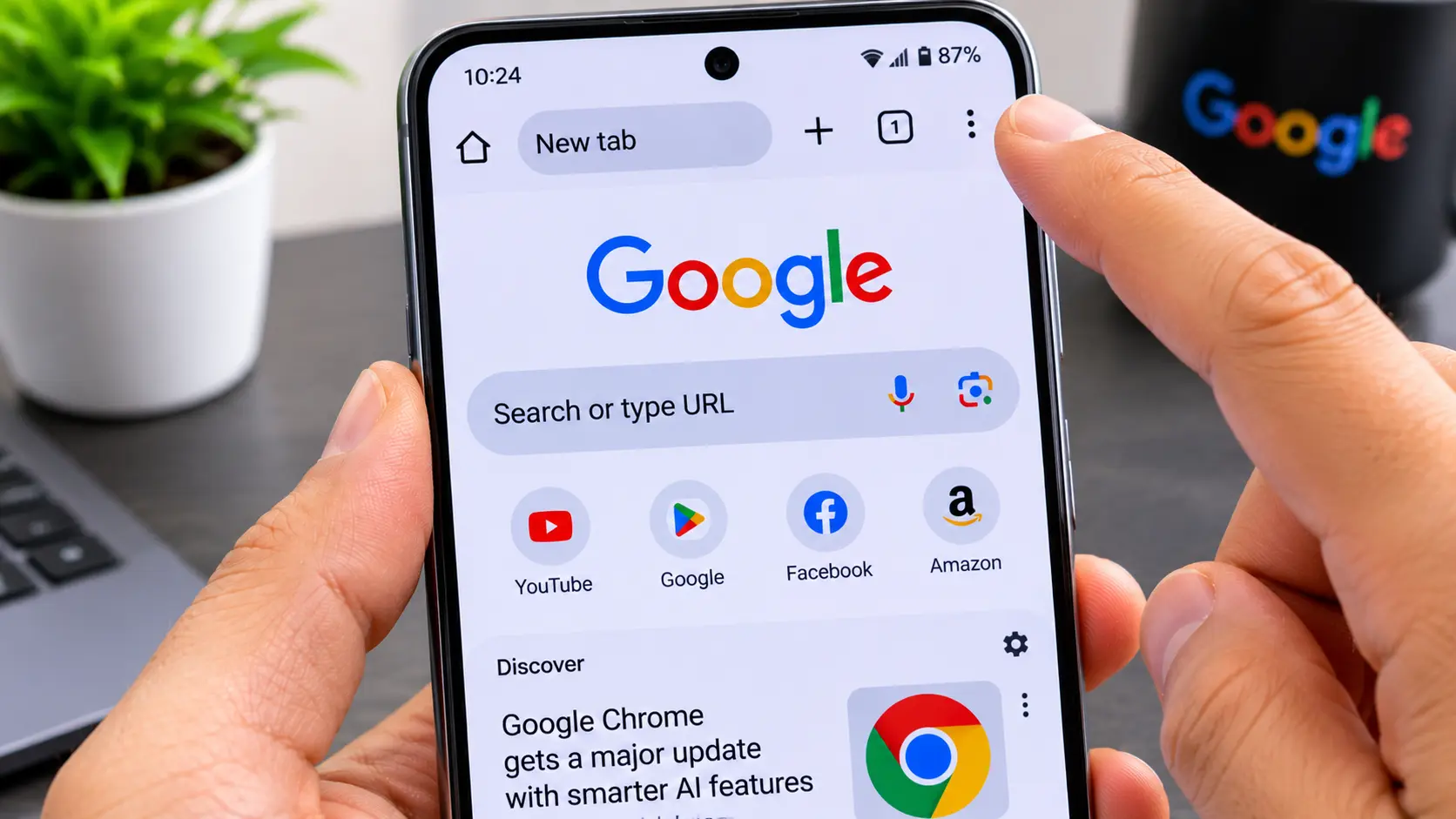
The Chrome new tab page: not a home screen widget.
What If the Bar Keeps Coming Back?
Some users remove the widget, only to find it returns after a restart or an update. Here is why, and what to do .
- You removed one instance, but there is another. Check all your home screen pages. A widget can exist on multiple pages.
- Your launcher re added it after an update. Some launchers re enable default widgets after a system update. Remove it again.
- It is a fixed launcher element, not a widget. If you are on an older Pixel or a Samsung device on One UI 9, the bar may be a launcher setting, not a widget. Check the settings menu as described above.
Frequently Asked Questions (FAQ)
Can I remove the Google search bar on any Android phone?
Not always. On most phones, the bar is a widget and can be removed. On older Pixel phones and some carrier locked devices, it is a fixed launcher element. With Android 17, Google added a toggle for Pixel users, but older devices are still stuck with it unless you install a third party launcher .
Will removing the Google bar break my phone?
No. The Google search bar is a shortcut. Removing it does not affect the Google app, your search history, or your phone's functionality. You can still search the web using the Google app or your browser .
Why does my Samsung phone not have the "Show search on Home screen" option?
This option was added in One UI 9. If your Samsung phone is running an older version of One UI, the search bar is likely a widget. Long press it and select Remove .
Can I replace the Google bar with a different search engine?
Yes. After removing the Google bar, you can add a widget for DuckDuckGo, Bing, or any other search engine from your widget picker .
Does removing the Google bar affect my Google account?
No. The bar is just a shortcut. Your Google account, search history, and app data are not affected. Removing the widget is purely cosmetic .
Why does my iPhone show a Google bar on the lock screen?
That is likely a widget in the Today View or a suggestion from Siri. Swipe right on the lock screen and check the widgets there. Long press and remove the Google widget if it appears .
Can I remove the Google bar from my Chromebook?
Chromebooks do not have a Google search bar on the home screen in the same way Android phones do. The Chrome browser's address bar is not removable. If you see a Google search widget on a Chromebook's shelf or desktop, it is likely a widget or a shortcut. You can remove it like any other widget.
Final Thoughts: You Have More Control Than You Think
The Google search bar is not a permanent fixture anymore. On most devices, you can remove it in under 30 seconds. The only exceptions are older Pixel phones and some carrier locked devices, where a third party launcher is your only option.
If you have a Samsung phone on One UI 9, check the home screen settings. If you have an iPhone, long press the widget and remove it. If you have a newer Pixel, the Android 17 toggle is your answer.
And if you are still not sure what you are looking at, remember the quick test: long press the bar. If it responds, it is a widget. If it does not, it is a launcher setting. Either way, you now know where to look.
🔍 Test Your Phone Screen for Defects Now
Related Guides
- Samsung Galaxy S25 Ultra Screen Test: The Hidden Defects
- iPhone Screen Test: The Founder's Guide to Spotting Defects
- How to Test Your Monitor Like a Pro: 5 Essential Checks
- Dead Pixel vs Stuck Pixel: What's the Difference?
- Dead Pixel on a Laptop Screen: Free Test and Fix
- What is Screen Burn-In? How to Detect, Prevent, and Fix It
💬 Leave a Comment
Have a question or something to add? Share your thoughts below.
Loading comments...