 SCREEN
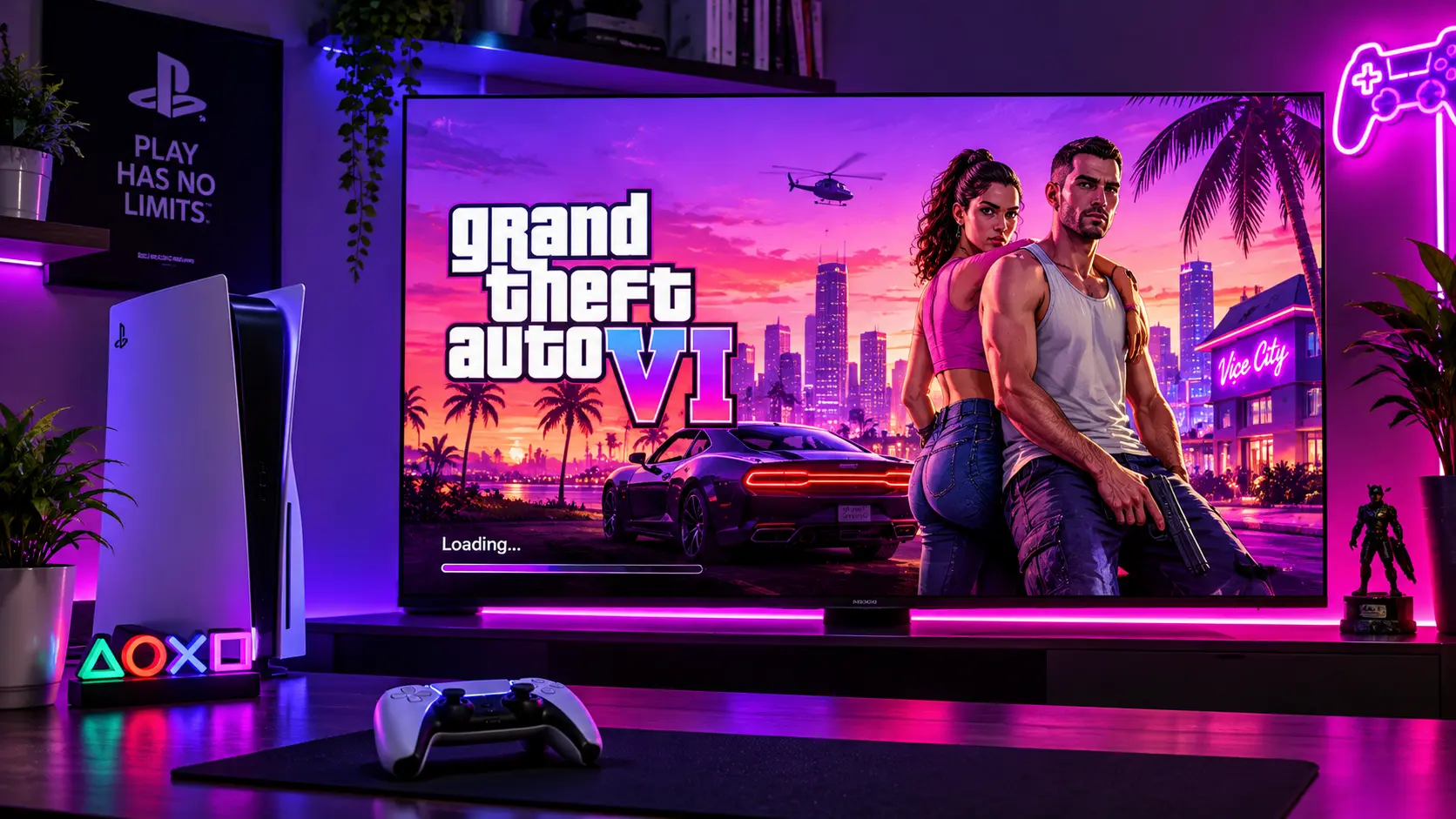
📌 Technician's Quick Summary (TL-DR): Grand Theft Auto VI launched today, November 19, 2026, on PS5 and Xbox Series X/S. It is a visual masterpiece with a 99/100 Metacritic score [citation:8]. But it is also a stress test for your display. Here is what you need to know before you play.
- OLED Burn-In Risk: A 50+ hour campaign with a static mini map and HUD is the perfect recipe for burn-in. Run a burn-in scan before you start.
- 30 FPS Reality: The game targets 30 FPS on all consoles. On a 120Hz TV, this causes judder. Learn how to configure VRR correctly.
- HDR Calibration: Vice City's neon nights and Leonida's sunny beaches demand proper HDR calibration. Black crush will ruin the experience.
Today is the day. After years of waiting, delays, and speculation, Grand Theft Auto VI is finally in the hands of players worldwide. Rockstar Games has delivered a game that critics are calling the best of the generation, with a Metacritic score of 99 a feat matched only by The Legend of Zelda: Ocarina of Time in 1997 [citation:8].
But I am not here to review the game. You have probably already read a dozen reviews. I am here to talk about something more practical: your display.
In my workshop, I have spent the last week preparing for this launch. Not by playing the game, but by anticipating the flood of support requests that are about to come in. Every major game launch brings a wave of display related complaints. And GTA 6 is not just any game. It is a visual showcase designed to push the PS5 and Xbox Series X/S to their limits [citation:10].
This guide is your survival kit. It covers the three display related dangers that GTA 6 poses: OLED burn-in from the HUD, motion clarity issues from the 30 FPS target, and HDR calibration problems that will ruin Vice City's neon soaked nights. And it gives you the exact Screen Medic tests to run before you lose yourself in Leonida.
GTA 6 is the ultimate test for any gaming display. Are you ready?
1. Surviving 50+ Hours in Vice City Without OLED Burn-In
Let us start with the biggest risk. If you own an OLED or QD-OLED TV or monitor, GTA 6 is a potential nightmare for your panel.
The game features a campaign of approximately 50 hours, with over 100 missions [citation:9]. Many players have taken time off work to marathon the game. And during those marathon sessions, your screen will display the same static elements for hours on end: the mini map in the corner, the health and armor bars, the weapon wheel icon, and the wanted level stars.
On an OLED display, every pixel ages independently. Pixels that display bright, static content age faster than pixels that display darker, moving content. Over time, this uneven aging leaves a permanent ghost image burn-in [citation:5].
The good news is that modern OLED panels are more resistant than their reputation suggests. They have built-in protections like Pixel Shift, Logo Detection, and Pixel Refresh. But those protections are not magic. They buy you time. They do not make you immune.
What You Should Do Before You Play
Before you launch the game, run the OLED Burn-In Scan and Uniformity Check on our free Screen Medic diagnostic tool. This establishes a baseline. You will know exactly what your panel looks like before GTA 6, so you can compare it after 50 hours of play.
During play, take regular breaks. Every two hours, turn off the screen for 10 to 15 minutes. This allows the pixels to rest and the automatic Pixel Refresh routines to run. And if your TV has a "Pixel Shift" setting, make sure it is enabled. It is the single most effective prevention tool you have.
For a complete guide to understanding, preventing, and managing burn-in, read my article on What is Screen Burn-In? How to Detect, Prevent, and Fix It.
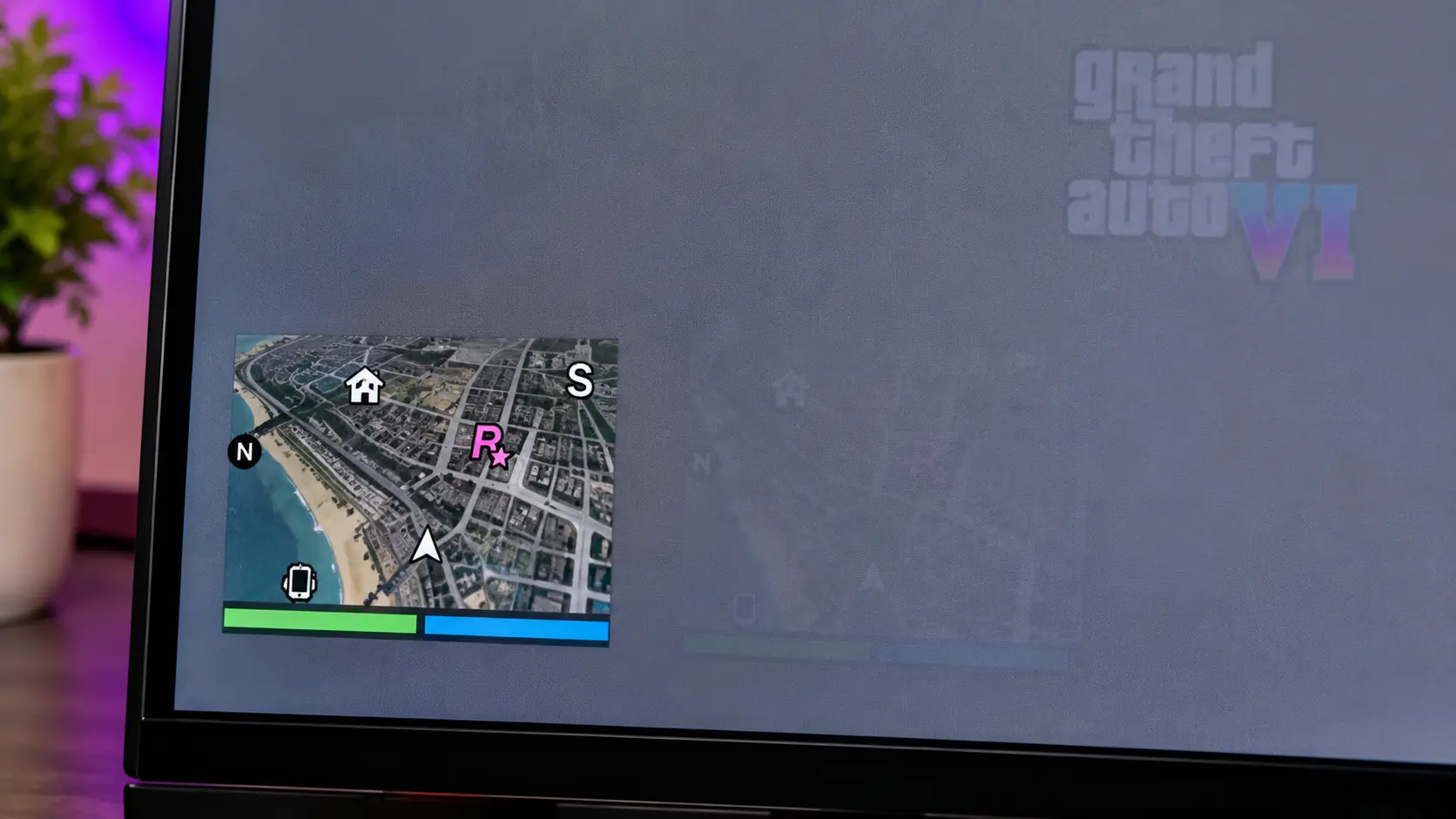
The mini map, health bars, and wanted stars are the most dangerous elements for your OLED panel.
2. Mastering 30 FPS Motion Clarity, Ghosting & VRR on High-Hz Displays
Here is a technical reality that has disappointed some players: GTA 6 runs at 30 FPS on PS5, PS5 Pro, and Xbox Series X/S. Rockstar has confirmed that there are no plans for a 40 or 60 FPS mode, even on the PS5 Pro [citation:4].
Why? Because the game's simulation is incredibly dense. The CPU is the bottleneck, not the GPU. Rockstar prioritized the density of NPCs, the complexity of the world, and the ray-traced global illumination over raw frame rate [citation:3].
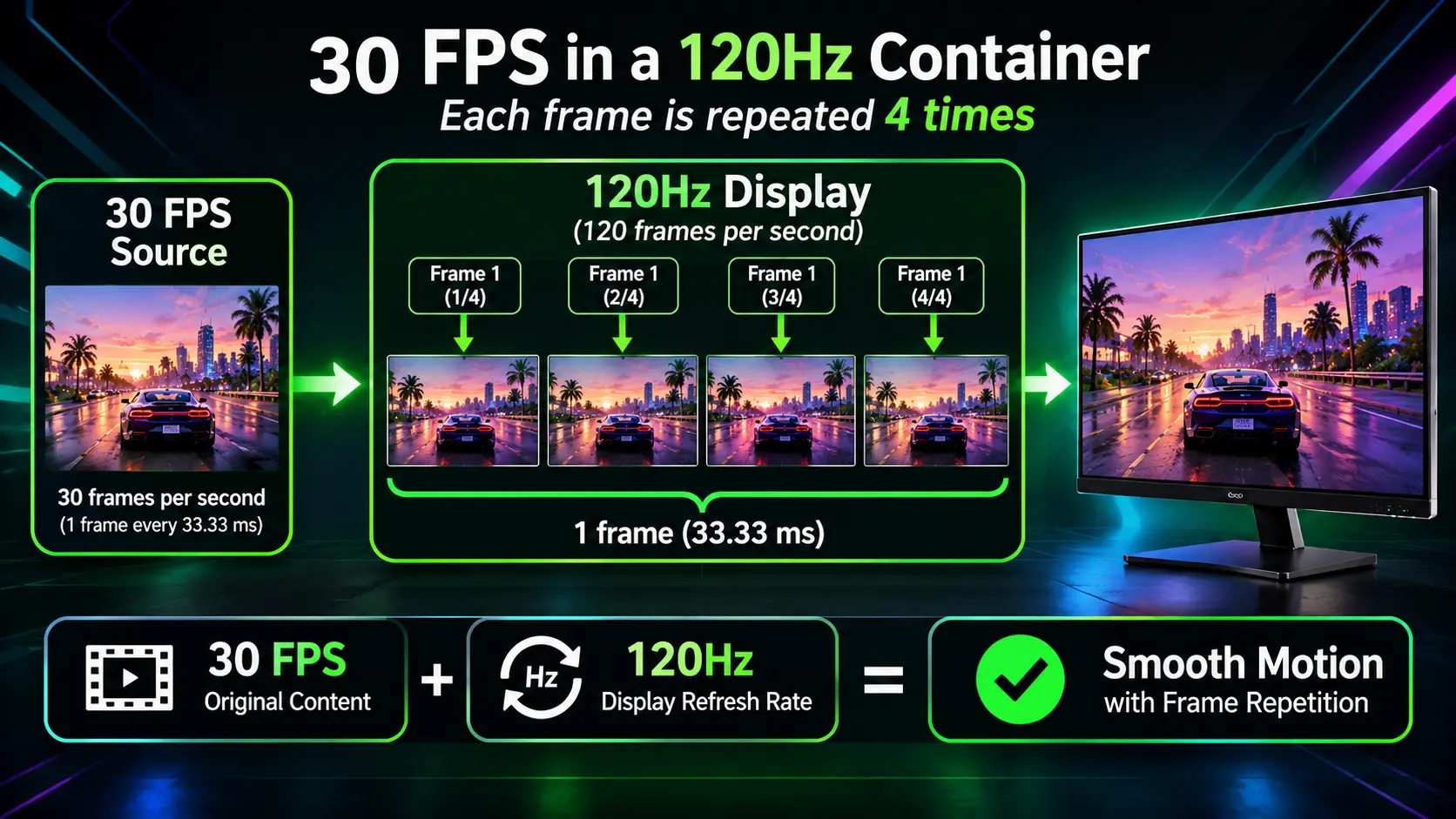
On a standard 60Hz TV, 30 FPS looks acceptable. It has a cinematic feel. But on a modern 120Hz or 144Hz gaming monitor or TV, 30 FPS is a problem. The frame rate does not divide evenly into the refresh rate. This causes juddera stuttering effect that makes motion look uneven.
The VRR Solution (And Its Limits)
Variable Refresh Rate (VRR) is designed to fix this. It matches the display's refresh rate to the console's frame rate. But here is the catch: VRR on PS5 only works at frame rates above 48 FPS. Since GTA 6 runs at 30 FPS, PS5's VRR does not help [citation:4].
Xbox Series X/S has a better implementation. It can output the game in a 120Hz container with system level VRR. This does not turn 30 FPS into 120 FPS. Instead, it repeats frames to keep the signal within the VRR range, which smooths out drops below 30 FPS [citation:4]. If you have an Xbox and a VRR-compatible TV, enable it.
For a complete technical breakdown of why this happens and how to configure your display, read my guide on Refresh Rate Guide: 60Hz vs 120Hz vs 144Hz vs 240Hz.
Ghosting and Overdrive
If you are playing on a gaming monitor with a high refresh rate, you might notice ghosting or motion blur. This is not a bug in the game. It is a limitation of your monitor's pixel response time. For a complete guide to fixing this, read my article on Monitor Ghosting Explained.
3. Calibrating HDR for Leonida's Neon Nights & Sunny Beaches
GTA 6 is a showcase for HDR. Rockstar built the game's lighting engine from the ground up to support high dynamic range [citation:11]. The contrast between the sun drenched beaches of Leonida Keys and the neon lit streets of Vice City is extreme.
But HDR is also where most players get it wrong. If your HDR is not calibrated properly, you will either get black crush (where dark details disappear into pure black) or a washed out image (where bright details lose their impact).
How to Calibrate HDR for GTA 6
Start with your console's built-in HDR calibration tool. On PS5, go to Settings > Screen and Video > Video Output > Adjust HDR. On Xbox, go to Settings > General > TV & display options > Calibrate HDR.
In the game itself, go to Settings > Display > HDR Calibration. You will see three sliders: Maximum Brightness, Black Level, and Paper White. Do not copy settings from the internet. Every panel is different. Adjust the Maximum Brightness slider until the sun logo disappears, then back it off slightly. Adjust the Black Level until the logo is barely visible. Adjust Paper White to a comfortable level for your room [citation:6].
If your TV supports HGIG (HDR Gaming Interest Group), enable it. HGIG disables the TV's dynamic tone mapping, allowing the console to handle the HDR mapping. This results in a more accurate image [citation:14].
After calibrating, run the Uniformity Check and Backlight Bleed Test on our diagnostic tool. Extreme HDR content exposes panel flaws that SDR content hides. If you see cloudy patches on dark scenes or light leaking from the corners, you have a uniformity issue. For a full breakdown, read my article on Backlight Bleed vs IPS Glow.
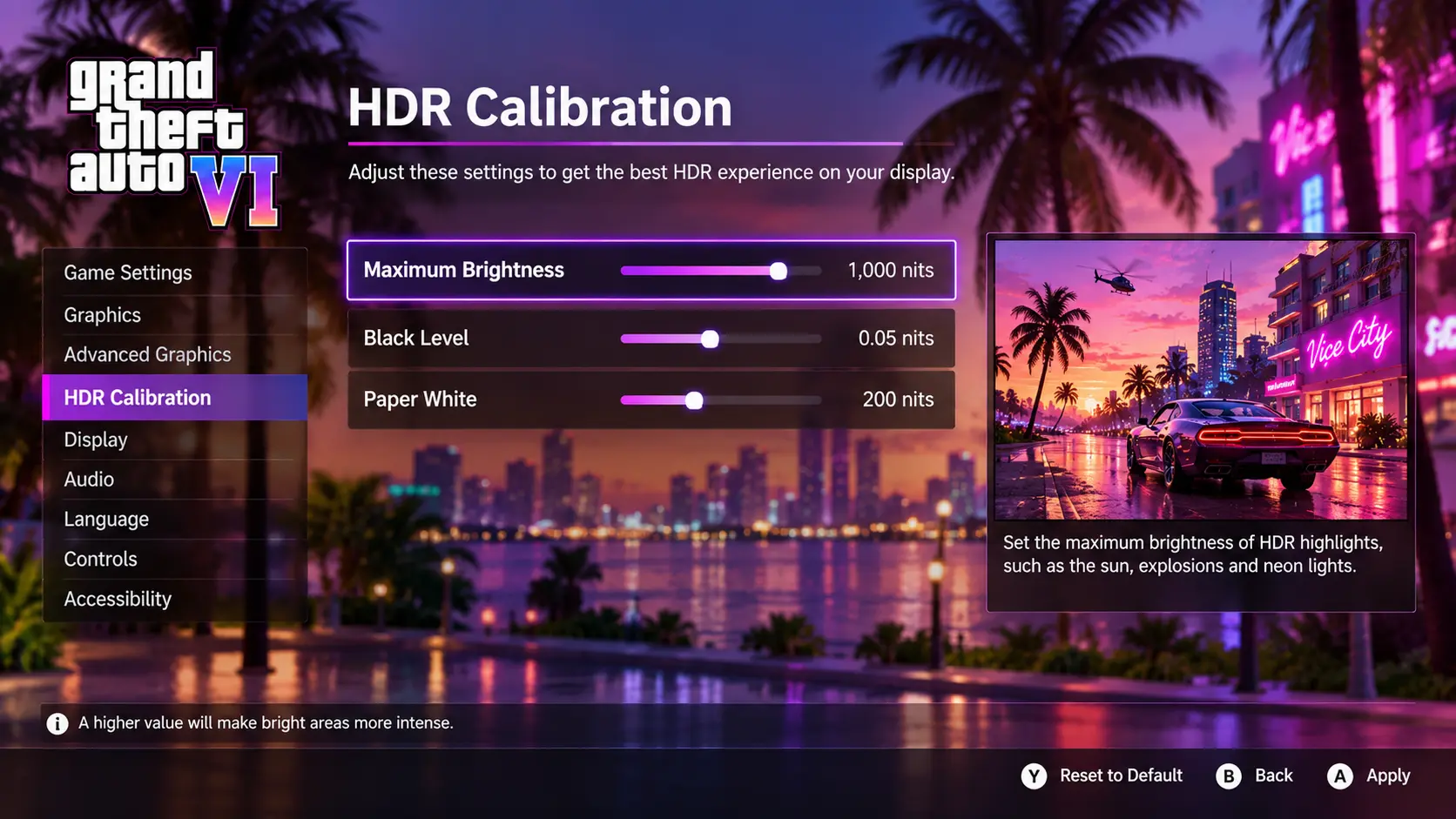
Take two minutes to calibrate HDR properly. It transforms the experience.
4. Bought a New TV or Monitor for GTA 6? Run This 60-Second Dead Pixel Check
I know many of you bought a new TV or monitor specifically for this game. The launch of a generational title like GTA 6 is the biggest upgrade trigger in the display industry. Retailers have been running "GTA 6 Ready" promotions for months.
If you are one of those people, congratulations. But before you start playing, do one thing: run a dead pixel check.
A dead pixel is a permanently black dot that never lights up. A stuck pixel is a bright dot that stays on one color. Both are manufacturing defects. Both are covered by most return policies within the first 14 to 30 days. But you need to find them first.
Open our free diagnostic tool and run the Dead Pixel Detection test. It cycles through white, black, red, green, and blue. Look for any dots that do not match the background. If you find one, document it with photos and contact your retailer immediately.
For a complete guide to identifying and dealing with dead pixels, read my article on What is a Dead Pixel? The Complete Guide. And if you are not sure whether you have a dead pixel or a stuck pixel, read Dead Pixel vs Stuck Pixel.
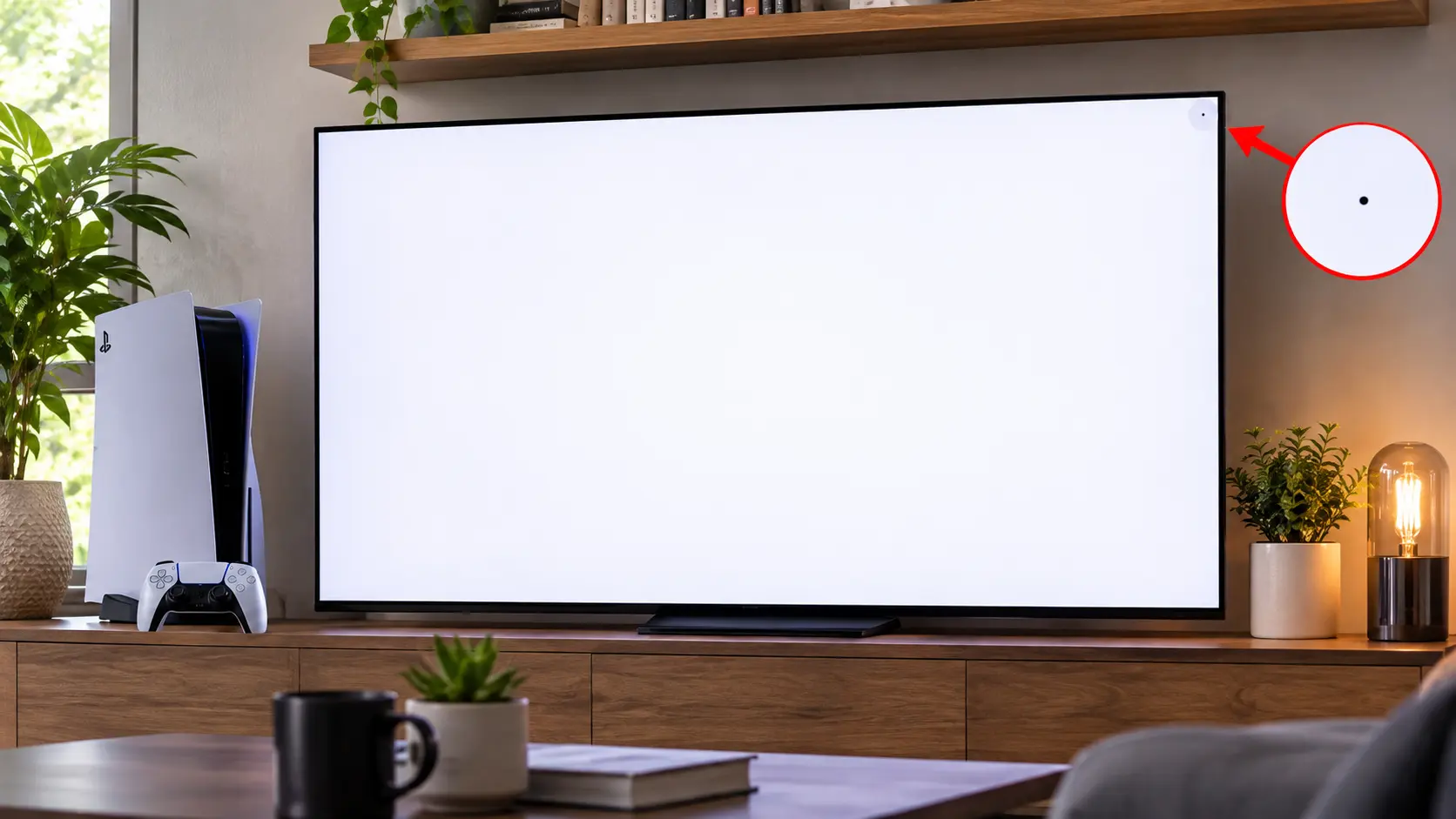
Test your new display before you lose yourself in Vice City.
5. The Alt-Tab Problem (For PC Players Waiting for 2027)
GTA 6 is not on PC yet. Rockstar has not announced a PC version, though industry estimates suggest a release in early 2027 [citation:15]. But if you are a PC player planning to buy the game next year, there is a technical issue you should know about.
High refresh rate monitors with DisplayPort 1.4 and DSC (Display Stream Compression) can suffer from multi-second black screens when you Alt Tab. This is not a bug in GTA 6. It is a display handshake issue. For a complete explanation and fixes, read my article on Alt-Tab Black Screen & DSC.
6. What About the Xbox Series S?
If you are playing on Xbox Series S, you should know that the game runs at 720p internally, upscaled to 1080p via AMD FSR 4 [citation:11]. The frame rate can drop into the 20s during intense action [citation:3]. This is not a display issue. It is a hardware limitation. But it is worth knowing before you blame your TV.
Frequently Asked Questions (FAQ)
Is GTA 6 out on PC?
No. GTA 6 is currently only available on PS5 and Xbox Series X/S. Rockstar has not announced a PC version, though industry estimates suggest a release in early 2027 [citation:7][citation:15].
Does GTA 6 support 120Hz or VRR on PS5 and Xbox Series X?
GTA 6 runs at 30 FPS. On PS5, VRR only works above 48 FPS, so it does not help. On Xbox Series X/S, the game can output in a 120Hz container with VRR, which smooths out frame drops [citation:4].
Can GTA 6 cause burn-in on my OLED TV or monitor?
Yes, it can. The static mini map, HUD elements, and health bars are displayed for hours during a 50+ hour campaign. This is the exact condition that causes uneven pixel aging. Run a burn-in scan before and after playing, and enable Pixel Shift on your display.
What is the best display setting for GTA 6?
For HDR, calibrate using the in-game sliders and enable HGIG if your TV supports it. For motion, if you are on Xbox, enable VRR. On PS5, accept the 30 FPS cinematic look or use a TV with strong motion interpolation (though this adds input lag).
Why does GTA 6 look blurry on my 4K TV?
The game renders at 1440p internally and upscales to 4K using TAA (PS5/Xbox Series X) or PSSR (PS5 Pro) [citation:11]. It is not native 4K. This is a deliberate choice to maintain performance. It is not a problem with your TV.
Should I buy a new TV for GTA 6?
If your current TV is older than 5 years and lacks HDR or VRR, an upgrade will significantly improve the experience. But do not buy a new TV just for this game if your current one is decent. The game looks great on most modern displays.
What is the file size of GTA 6?
The install size is approximately 210 GB on PS5 [citation:9]. Make sure you have enough free space before you start the download.
Can I play GTA 6 on Xbox One or PS4?
No. The game is a current-generation exclusive. It is available on PS5, Xbox Series X/S, and via Xbox Cloud Gaming on other devices [citation:10].
Final Thoughts: Prepare Your Display, Then Enjoy the Ride
GTA 6 is a masterpiece. It is the kind of game that only comes along once a decade. But it is also a demanding game for your display. OLED burn-in, HDR calibration issues, and 30 FPS motion judder are real concerns.
Take 10 minutes before you play to run the tests. Calibrate your HDR. Enable your display's protections. Then, lose yourself in Vice City. You have earned it.
🔍 Test Your Display Before You Play GTA 6
Related Guides
- What is Screen Burn-In? How to Detect, Prevent, and Fix It
- Monitor Ghosting Explained: Causes, Tests, and How to Fix It
- Backlight Bleed vs IPS Glow: How to Test and Tell Them Apart
- What is a Dead Pixel? The Complete 2026 Guide
- Dead Pixel vs Stuck Pixel: What's the Difference?
- How to Test Your Monitor Like a Pro: 5 Essential Checks
- The Ultimate Monitor Buying Guide 2026
- Alt-Tab Black Screen & DSC: The Real Cause of Your Fullscreen Delay
- Samsung Galaxy S25 Ultra Screen Test: The Hidden Defects
- Refresh Rate Guide: 60Hz vs 120Hz vs 144Hz vs 240Hz
💬 Leave a Comment
Have a question or something to add? Share your thoughts below.
Loading comments...