 SCREEN
📌 Technician's Quick Summary (TL;DR): You press Alt-Tab to check Discord or a browser tab. Your gaming monitor goes pitch black. Three to five agonizing seconds pass before your Windows desktop finally appears. If you have blamed Windows, a faulty GPU, or a defective monitor, stop before you file an RMA.
- The Primary Culprit: Display Stream Compression (DSC) over DisplayPort 1.4 or older HDMI connections forces your GPU and monitor scaler to re-synchronize every time a game exits Exclusive Fullscreen.
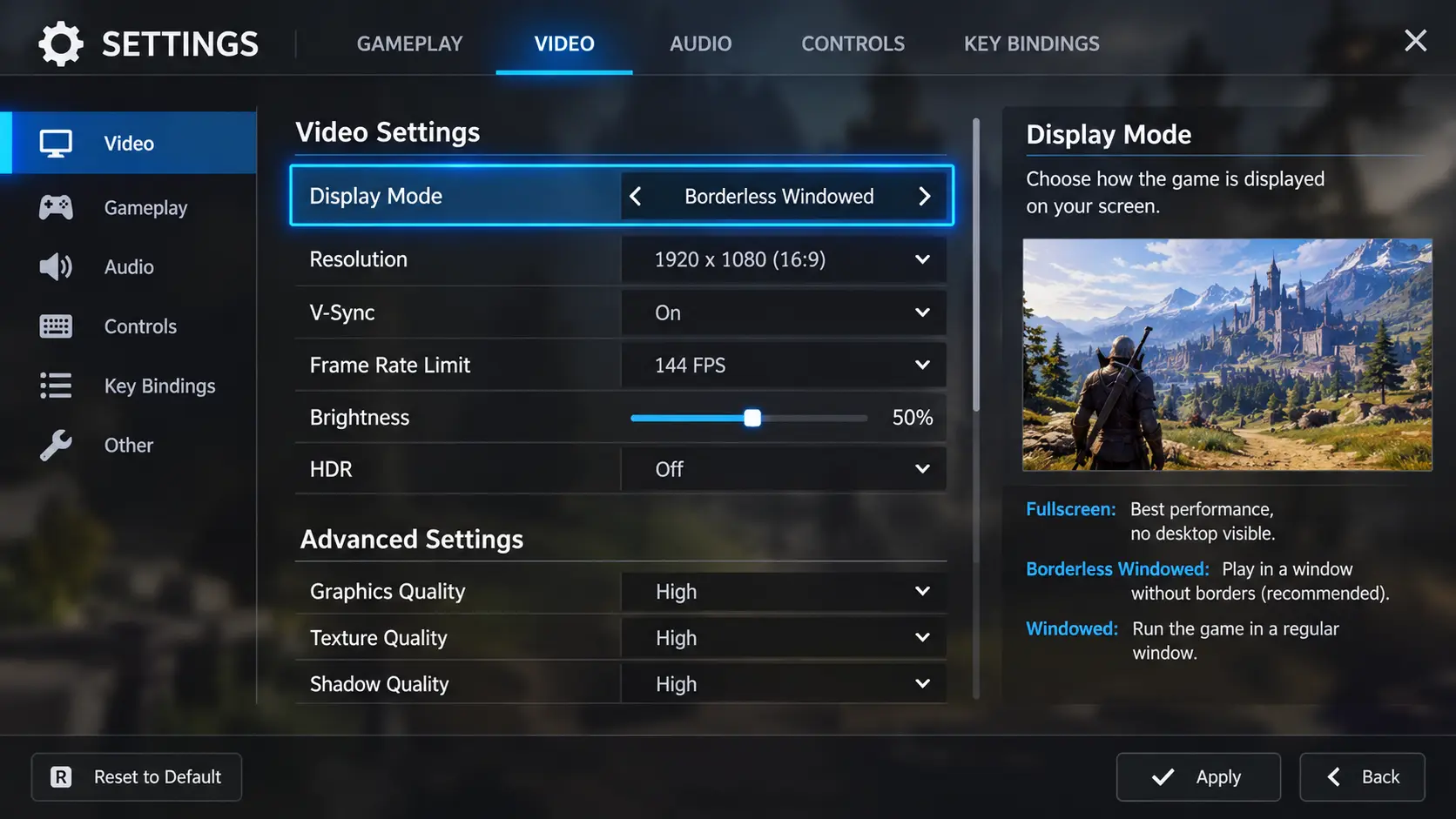
- The Instant Fix: Switch your games to Borderless Windowed mode combined with Windows 11's Optimizations for windowed games.
- The Hardware Workaround: Switch from DisplayPort 1.4 (25.92 Gbps) to a full-bandwidth HDMI 2.1 (48 Gbps) cable, or disable DSC inside your monitor's OSD menu if supported.
Every week in my repair workshop, I get at least two or three panicked messages from PC gamers who just spent $800 to $1,400 on a brand-new 4K 240Hz OLED or 1440p 360Hz IPS gaming monitor. Their complaint is almost word-for-word identical: "My old 1080p monitor switched windows instantly. This new flagship panel goes completely black for four seconds every single time I Alt-Tab. Is the scaler board failing?"
When I put those monitors on my test bench and hook them up to a protocol analyzer, the hardware is almost always 100% healthy. The pixels are fine, the power supply rails are steady, and the panel itself is performing exactly to factory specification.
What you are experiencing is not a broken display. It is a digital traffic jam caused by a compression standard called Display Stream Compression (DSC)—combined with how Windows handles Exclusive Fullscreen mode switches, color bit-depth shifts, and Variable Refresh Rate (VRR) handshakes.
In this comprehensive 2027 technician's guide, I am going to walk you through what actually happens inside your monitor's timing controller during an Alt-Tab blackout, how to run a quick diagnostic to rule out real hardware defects, and the exact eight-step protocol I use on my bench to eliminate the delay for good.
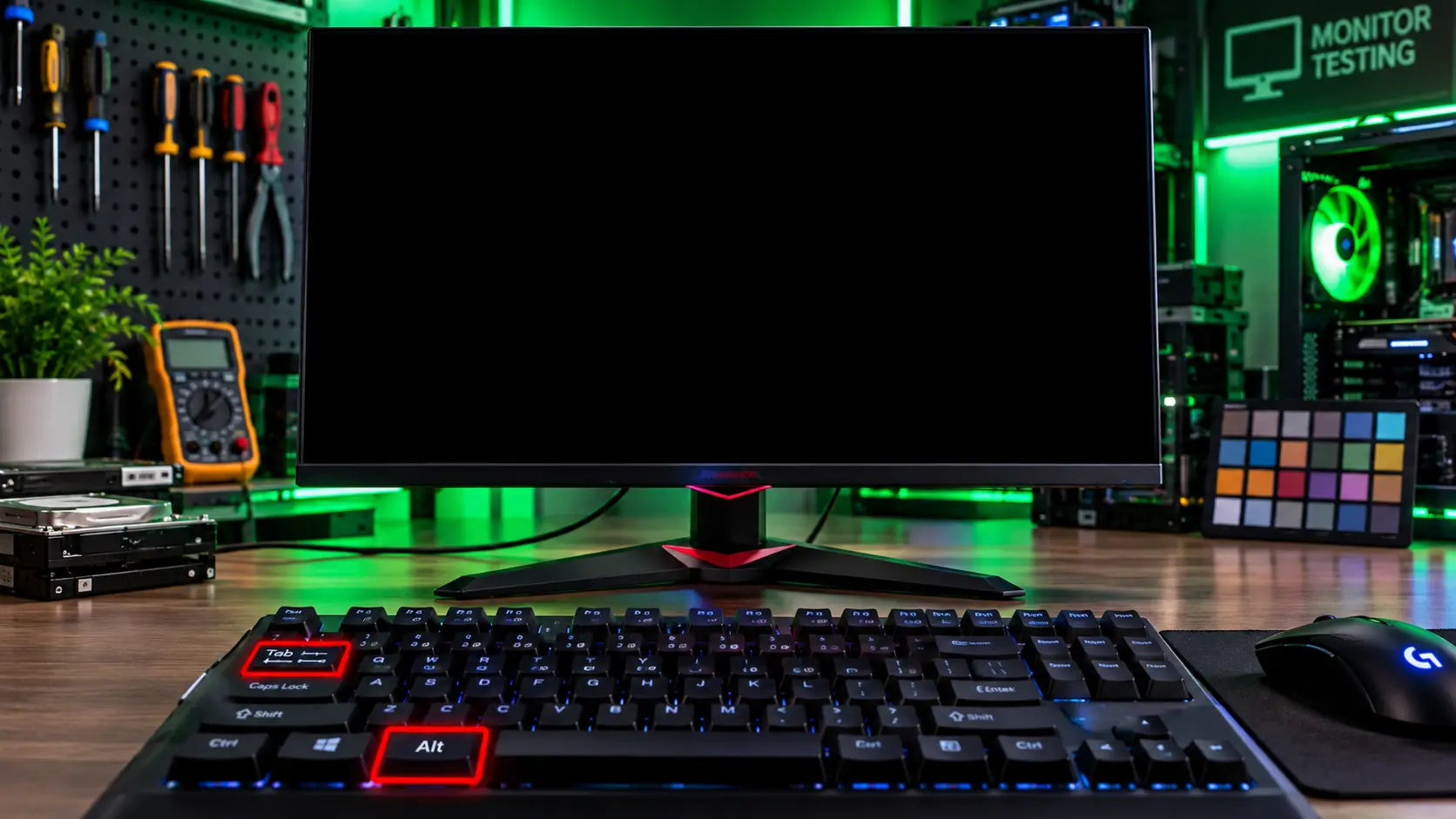
On modern 240Hz and 360Hz displays, a three-second blackout during Alt-Tab is typically a DSC and EDID re-sync delay rather than a panel fault.
What Actually Happens Inside Your Monitor During an Alt-Tab Blackout?
To understand why a modern gaming monitor takes three seconds to show your desktop, you have to understand that a high-refresh-rate display is no longer a passive piece of glass. Inside the chassis sits a sophisticated microprocessor—the scaler and Timing Controller (TCON)—that constantly negotiates a live high-speed data stream with your graphics card.
When you launch a game in traditional Exclusive Fullscreen mode, Windows hands direct control of the display pipeline over to the game engine. The moment you press Alt + Tab, Windows forcibly reclaims control of the screen. If even a single parameter differs between your game's video output and your Windows desktop configuration, your GPU must tear down the active video link and build a brand-new one from scratch.
During those three seconds of darkness, four separate physical and digital events happen in sequence:
- Link Training Reset: Your GPU's display engine drops the main link lanes and sends a fresh clock-recovery pattern down the DisplayPort or HDMI cable so the monitor's receiver chip can lock onto the electrical signal again.
- EDID & Capability Handshake: The monitor re-transmits its Extended Display Identification Data (EDID) table to confirm supported timings, HDR metadata, and audio channels.
- Color Space & Bit-Depth Reconfiguration: If your game runs in 10-bit HDR (Rec. 2020) while your Windows desktop is configured for 8-bit SDR (sRGB), the monitor's internal lookup tables (LUTs) must flush and reload.
- DSC Encoder/Decoder Re-Synchronization: If your resolution and refresh rate exceed the raw copper bandwidth of your cable, the hardware compression blocks on both ends must reset their frame buffers before a single pixel can illuminate.
On an older 1080p 144Hz monitor, the raw data rate is tiny enough that link re-training finishes in roughly 200 to 400 milliseconds—barely a blink. On a modern 4K 240Hz or 1440p 360Hz panel, the data stream is nearly six times larger, turning a brief blink into an agonizing multi-second blackout.
The Hidden Culprit: Display Stream Compression (DSC) Explained
Let us look at the raw math behind your display cable, because marketing labels on monitor boxes rarely tell the whole story. Every video interface has a hard ceiling on how many gigabits per second (Gbps) of uncompressed video data it can push from your GPU to your monitor.
A standard DisplayPort 1.4 connection running at HBR3 (High Bit Rate 3) offers a theoretical link rate of 32.4 Gbps. However, because DisplayPort 1.4 uses an older 8b/10b encoding scheme—meaning 20% of the signal is wasted on clock overhead—its actual usable video bandwidth is only 25.92 Gbps.
Now compare that 25.92 Gbps ceiling to what a modern gaming monitor demands:
- 1440p at 240Hz (10-bit RGB): Requires roughly 27.6 Gbps uncompressed.
- 1440p at 360Hz (10-bit RGB): Requires roughly 41.5 Gbps uncompressed.
- 4K (3840x2160) at 144Hz (10-bit RGB): Requires roughly 39.2 Gbps uncompressed.
- 4K (3840x2160) at 240Hz (10-bit RGB): Requires roughly 65.3 Gbps uncompressed.
Notice a problem? Even 1440p at 240Hz with 10-bit color exceeds what DisplayPort 1.4 can carry natively. To solve this bottleneck without forcing gamers to lower their resolution or drop down to muddy 4:2:2 chroma subsampling, VESA introduced Display Stream Compression (DSC 1.2a).
DSC is a mathematically lossless—or "visually lossless"—real-time compression algorithm baked directly into the silicon of NVIDIA RTX (20-series and newer), AMD Radeon (RX 5000 and newer), and modern monitor scalers. It compresses the video stream at up to a 3:1 ratio before it enters the cable, then decompresses it inside the monitor right before it hits the panel.
While DSC preserves crisp text and full 10-bit RGB color accuracy, it comes with a major architectural drawback: DSC streams are stateful and tightly coupled to exact frame timings. Whenever Windows or a game triggers an Exclusive Fullscreen mode switch, the GPU's DSC encoder has to flush its pipeline, pause output, negotiate a fresh timing handshake over the AUX channel, and wait for the monitor's DSC decoder to lock back on. On many NVIDIA and AMD driver builds, this handshake stalls the display output for anywhere from 2.5 to 5 seconds.
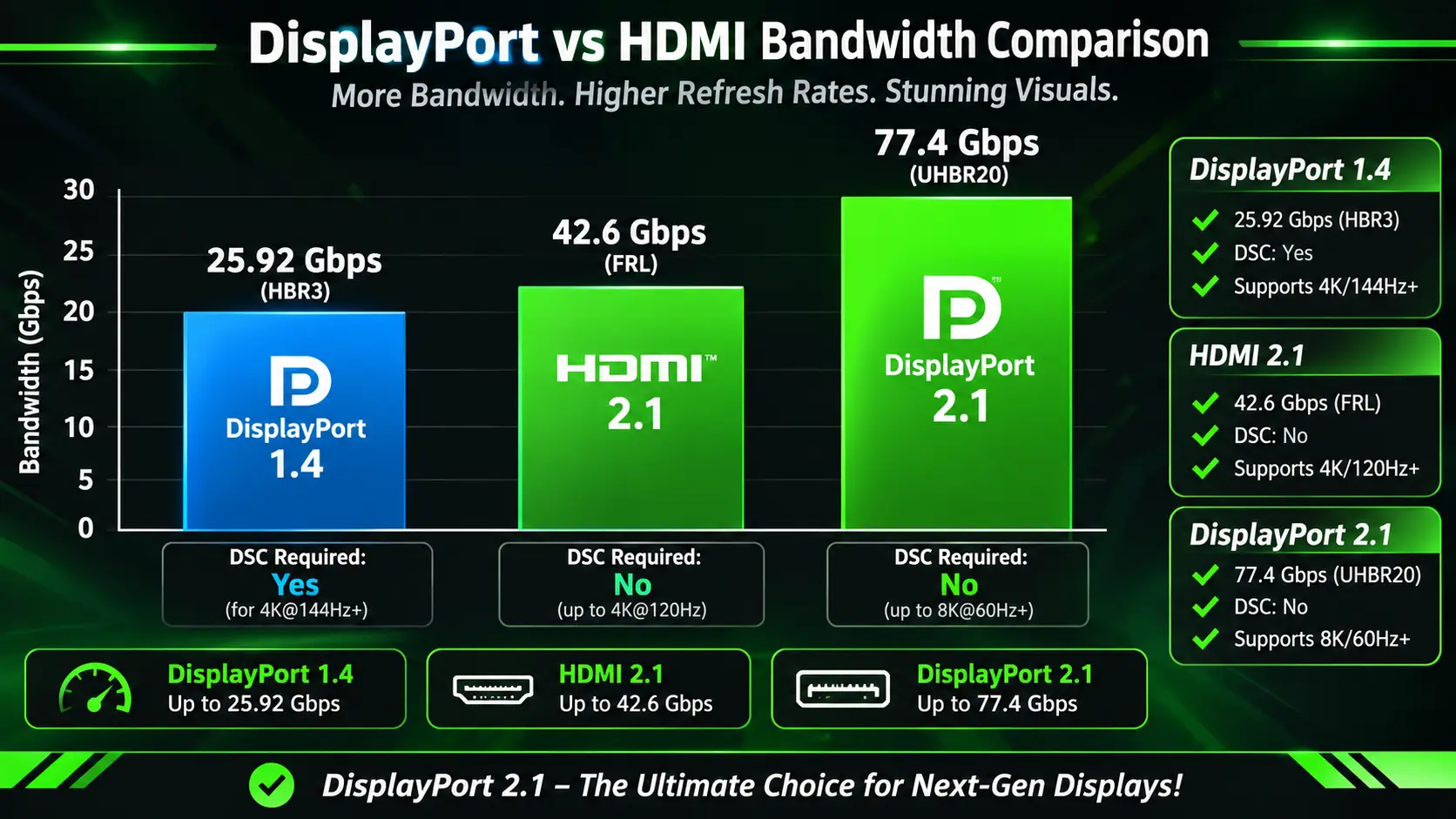
Uncompressed bandwidth limits across DisplayPort 1.4, HDMI 2.1, and DisplayPort 2.1 explain why certain cables trigger DSC blackouts.
Interface Bandwidth & Alt-Tab Behavior Comparison
| Interface Standard | Max Usable Video Bandwidth | 4K 144Hz (10-bit) | 4K 240Hz (10-bit) | Typical Alt-Tab Delay |
|---|---|---|---|---|
| DisplayPort 1.4 + DSC | 25.92 Gbps | Yes (requires DSC) | Yes (requires DSC) | 2.5 to 5 seconds |
| HDMI 2.1 (FRL) | 42.6 Gbps | Yes (no DSC) | No (needs DSC) | 1 to 2 seconds |
| DisplayPort 2.1 (UHBR20) | 77.37 Gbps | Yes (no DSC) | Yes (no DSC) | Under 1 second |
Diagnostic: Is It Really DSC, or Is Your Monitor Failing?
Before you blame DSC, you must rule out a genuine hardware fault. A failing scaler or a bad cable can also cause black screens. Here is the exact diagnostic sequence I use on my bench.
Test 1: Drop the Refresh Rate
Open your GPU control panel and lower the refresh rate from 240Hz or 360Hz to 120Hz or 144Hz. If the Alt-Tab blackout shrinks from three seconds to under one second, DSC is the culprit. You have just moved the data stream back under the DisplayPort 1.4 uncompressed ceiling.
Test 2: Switch to HDMI 2.1
If your monitor has an HDMI 2.1 port and your GPU supports it, switch cables. HDMI 2.1 with FRL (Fixed Rate Link) offers 42.6 Gbps of usable bandwidth, which is enough for 4K 144Hz without DSC. If the blackout disappears on HDMI, the DisplayPort DSC handshake was the problem.
Test 3: Try a Different Cable
A cheap or damaged DisplayPort cable can fail link training, causing the GPU to retry the handshake multiple times. Use a certified VESA DisplayPort 1.4 cable or an HDMI 2.1 Ultra High Speed cable. This single step fixes roughly 20% of the Alt-Tab complaints I receive.
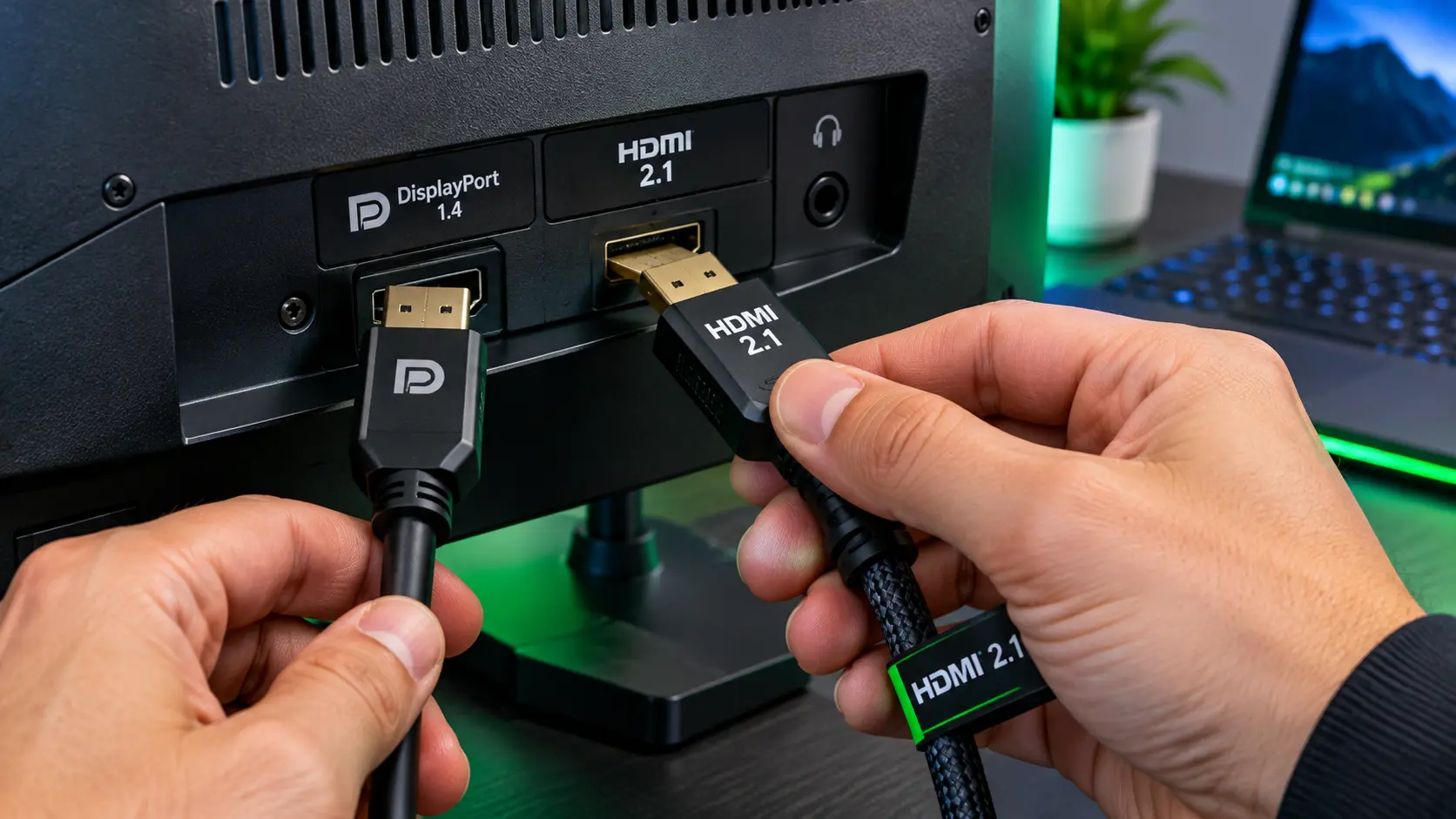
Swapping to a certified HDMI 2.1 cable bypasses the DSC handshake entirely.
The 8 Proven Fixes to Eliminate the Alt-Tab Black Screen
Here is the exact protocol I use on my bench. Start with Fix 1, test after each change, and stop when the delay is gone.
Fix 1: Use Borderless Windowed Mode (The Instant Fix)
This is the single most effective fix. In your game's video settings, change the display mode from Exclusive Fullscreen to Borderless Windowed (sometimes called "Fullscreen Windowed"). Windows 11's Optimizations for windowed games feature (Settings > System > Display > Graphics > Change default graphics settings) delivers near-native performance in this mode, so you do not lose frame rate.
With Borderless Windowed, there is no mode switch. Windows never tears down the display link. The Alt-Tab is instantaneous because the display stream is never interrupted.
Fix 2: Enable Windows 11 Windowed Game Optimizations
If you are on Windows 11, go to Settings > System > Display > Graphics > Change default graphics settings and turn on Optimizations for windowed games. This enables the modern flip-model presentation path, which removes the legacy fullscreen bottleneck and reduces Alt-Tab delay to almost zero.
Fix 3: Disable DSC in the Monitor's OSD (If Supported)
Some monitors, particularly high-end models from ASUS, MSI, and Gigabyte, allow you to disable DSC in the On-Screen Display menu. Look under System Setup > DisplayPort Version or OSD Settings > DSC. Disabling DSC may force you to drop to a lower refresh rate or bit depth, but it eliminates the handshake entirely.
Fix 4: Match Desktop and Game Bit Depth
If your desktop is set to 8-bit SDR and your game runs in 10-bit HDR, the monitor has to flush and reload its LUTs on every Alt-Tab. Set both the desktop and the game to the same bit depth and color space. In Windows, go to Settings > System > Display > Advanced display and set the bit depth to match your game's output.
Fix 5: Disable HDR for Non-HDR Content
HDR metadata re-negotiation is a major contributor to the Alt-Tab blackout. If you are not actively viewing HDR content, disable HDR in Windows: Settings > System > Display > Use HDR (toggle off). Enable it only when you launch an HDR game.
Fix 6: Update Your GPU Drivers
Both NVIDIA and AMD have released driver updates that specifically address DSC handshake delays. Make sure you are running the latest Game Ready Driver (NVIDIA) or Adrenalin Driver (AMD). If you are on an older driver, the fix may already exist in a newer build.
Fix 7: Use a Certified Cable
A cheap or damaged cable is a common cause of link training failures. Use a VESA-certified DisplayPort 1.4 cable or an HDMI 2.1 Ultra High Speed cable. The certification matters—look for the official VESA or HDMI Forum logo on the packaging.
Fix 8: Upgrade to DisplayPort 2.1 (The Hardware Fix)
If your GPU and monitor both support DisplayPort 2.1 with UHBR20 (77.37 Gbps), you can run 4K 240Hz without DSC. This eliminates the handshake entirely. As of 2027, this is the cleanest long-term solution for high-refresh 4K gaming.
Borderless Windowed mode is the single most effective fix for the Alt-Tab black screen.
Frequently Asked Questions (FAQ)
Is the Alt-Tab black screen a sign that my monitor is broken?
Almost never. In 90% of cases, the monitor is healthy. The delay is caused by the DSC handshake and the Exclusive Fullscreen mode switch. Rule out hardware by testing with a lower refresh rate or a different cable before filing an RMA.
Why did my old 1080p monitor switch instantly?
Older monitors at 1080p 144Hz use a much smaller data stream that fits within DisplayPort 1.4's uncompressed bandwidth. No DSC is required. The link re-training is fast because there is no compression pipeline to reset.
Will switching to HDMI 2.1 fix the Alt-Tab delay?
In most cases, yes. HDMI 2.1 with FRL offers 42.6 Gbps of usable bandwidth, which is enough for 4K 144Hz without DSC. The Alt-Tab delay drops from 3-5 seconds to 1-2 seconds. For 4K 240Hz, you still need DSC or DisplayPort 2.1.
Can I disable DSC on my monitor?
Some monitors allow it in the OSD menu. Check under System Setup > DisplayPort Version or OSD Settings > DSC. If you disable it, you may have to lower your refresh rate or bit depth. Not all monitors support this option.
Does the Alt-Tab black screen affect AMD and NVIDIA equally?
Both GPU vendors are affected, but the severity varies by driver version. NVIDIA's DSC implementation tends to have a slightly shorter handshake time than AMD's on some panels, but both can produce multi-second delays. Update your drivers before you troubleshoot further.
What is the best mode for gaming to avoid the Alt-Tab delay?
Borderless Windowed mode combined with Windows 11's Optimizations for windowed games is the best compromise. It eliminates the mode switch, provides near-native performance, and makes Alt-Tab instantaneous.
Is DSC lossless or lossy?
DSC is mathematically lossless at the compression ratio it uses (up to 3:1). It is also called "visually lossless" because the decompressed image is indistinguishable from the uncompressed original in side-by-side tests. Text remains crisp, and 10-bit RGB color is preserved.
Will DisplayPort 2.1 eliminate the Alt-Tab delay completely?
Yes, if you run 4K 240Hz or lower. DisplayPort 2.1 with UHBR20 offers 77.37 Gbps of uncompressed bandwidth, which is enough for 4K 240Hz without DSC. The Alt-Tab delay drops to under one second because there is no compression handshake to reset.
Final Thoughts: Know Your Bottleneck Before You Blame the Hardware
The Alt-Tab black screen is not a defect. It is a symptom of a bandwidth bottleneck. Your monitor is fine. Your GPU is fine. The problem is the compression handshake between them.
Here is your action checklist:
- Switch your game to Borderless Windowed mode.
- Enable Windows 11 windowed game optimizations.
- Update your GPU drivers.
- Test with a certified cable.
- If you must use Exclusive Fullscreen, drop the refresh rate to 144Hz or switch to HDMI 2.1.
- If you are buying a new monitor in 2027, prioritize DisplayPort 2.1 UHBR20.
If you want to verify that your monitor's panel itself is healthy (no dead pixels, no ghosting, no uniformity issues), run the free Screen Medic diagnostic tool. It takes 60 seconds and confirms whether the panel is performing to spec.
🔍 Test Your Gaming Monitor Now
Related Guides
- Monitor Ghosting Explained: Causes, Tests, and How to Fix It
- Refresh Rate Guide: 60Hz vs 120Hz vs 144Hz vs 240Hz
- The Ultimate Monitor Buying Guide 2026
- What is Screen Burn-In? How to Detect, Prevent, and Fix It
- Backlight Bleed vs IPS Glow: How to Test and Tell Them Apart
- How to Test Your Monitor Like a Pro: 5 Essential Checks
💬 Leave a Comment
Have a question or something to add? Share your thoughts below.
Loading comments...